


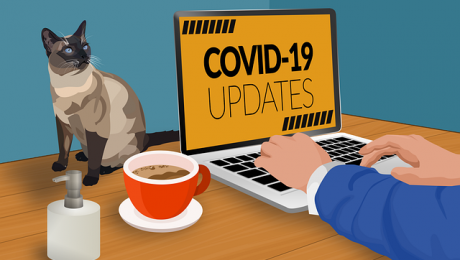
With the governor declaring essentially a state-wide shutdown of traditional workspaces, almost all of you are transitioning to some form of remote operations, up to a full shutdown of your physical office spaces and sending all of your employees home to work. While I consider myself a work-at-home veteran – this will be my eighth year running C2 from a home office – I can definitely say two things: firstly, none of us in IT have ever seen anything like this (though I did write a plan for EY during the SARS epidemic), and secondly, the IT world is mostly ready for this, technology-wise. But that doesn’t mean everyone else was ready for the Tele-pocalypse.
Many of you will be working from home, long-term, for the first time in your professional lives.
Whether you are a principal, manager or staff, everyone will be facing many of the same challenges:
- Residential internet is not business-class internet. Some of you may not have broadband because you’ve never really needed it. Even if you have broadband, it’s shared with everyone in your neighborhood, all working, attending classes, or just trying to enjoy a little entertainment. This may result in poor VPN connectivity, spotty VOIP phone calls, unreliable remote access connections, and general internet slowness. I know the ISP’s are trying to address this, but I’m not sure how much urgency they are putting into their effort, at least at the leadership levels. If you’ve been relying on DSL or your phone’s hotspot, it’s time to check to see if broadband is available. Get at least 25MB down and 5MB up per person in the house hold.
- Residential-class WiFi may not be reliable enough for your work. Judging by how many calls I received even before the Tele-pocalypse hit, most residential WiFi is weak and unreliable. This will be bad now with the increased traffic, and possibly may get even worse if you live in high-density buildings like apartments. WiFi signals don’t abide walls, and if your neighbor decides to put in a high-powered WiFi router or mesh system, it could step all over your weaker Wifi, changing your normally reliable wireless network into a troubleshooter’s nightmare. If WiFi is your only option, try to sit closer to the router, or if you can, get wired with an Ethernet cable.
- Most of you don’t have good monitors or computers at home. Currently there is a bit of supply-chain issue inhibiting everyone from gearing up with quality technology, mostly due to the rush on store shelves of people anticipating the Tele-pocalypse, but also due to a long-standing tariff battle with China, the largest supplier of technology to the United States. Also, you may have no idea if what is available is what you actually need. If you are shopping, get a 24″ monitor (maybe 2 if you are used to using dual-screens), a comfortable, ergo-correct chair, a wireless keyboard and mouse, and a computer in the $400-600 range at minimum. Refurbs are OK as long as you get a warranty and it was made in the last 4 years. Don’t go any older.
- Using a home PC to remote into your office computer is disorienting if you’ve never done it before. It will take some time to acclimate, and whether you wanted to or not, you’ve now doubled the potential for technology issues, malware infections and what I affectionately call “general tech orneriness”. Stuff is going to stop working, or start behaving strangely, and it will slow you down. A coworker is not likely to be nearby to give you a hand, and IT may not call for several hours. You’ll get more comfortable as time goes on and you get familiar with remote technology quirks. IT will stamp out the big bugs. It may never get back to the old normal, but it will get better.
Image by thedarknut from Pixabay
As many of you might have guessed, C2 is drinking from a proverbial fire hose this week, and I know for a fact that just about all of my clients are worried about how this will impact their organizations. It’s still too early for me to have any real insights on how this pandemic will transform workplace technology, but you can be sure none of us will emerge unchanged.
What I’ve seen so far:
It’s quite apparent that our national data networks are going to be severely challenged by a widespread shifting of work load away from business districts. A great many of us are served by shared broadband architecture built around suburban grids and population densities from the 1990’s which haven’t been substantially upgraded since they were first built. Residential broadband was designed around raw download speeds and comparatively anemic upload speeds, which is perfect for Netflix and YouTube, but not as great for neighborhoods full of business folks trying to upload gigabytes of data and host videoconferences, on top of kids attending online classes. I’m certain no one thought what is happening now would ever happen on their data networks.
One positive thing I see this week is a lot of very conservative work environments being forced to consider the fact that their operations don’t necessarily require everyone cramming into a big box of glass and steel for 10 hours a day. Unfortunately, that change is going to come with a lot of pain, especially for companies that have relied on older infrastructure and put off upgrades for a rainy day, only to have to deal with trying to purchase and install technology during a national emergency. Not impossible (yet), but this like switching your business “difficulty setting” to “high”.
Last observation for this week: we’re already seeing a HUGE spike in phishing emails exploiting everyone’s insatiable appetite for information on the pandemic. Please exercise caution on every email, just as before. Don’t open attachments, don’t click links, and for goodness sake, if an attachment asks for you to log in to view it, stop, back away from the keyboard, and…go wash your hands. And delete that email.
Stay safe.
Image by thedarknut from Pixabay

Aside from a huge spike in personal hygiene, if there is any other glimmer of a silver lining from the Corona Virus pandemic, one of them is assuredly that a lot of employers are going to need to re-evaluate their telecommuting stances. After working for more than 20 years in corporate offices, some of which had reasonably flexible telecommuting policies, I have now been running C2 from the comfort and convenience of our home for over eight years and I can honestly say I don’t miss working in corporate office at all. That being said, jumping straight into becoming a full-time telecommuter is not just a matter of grabbing your laptop and making a bee-line for home.
It can’t be that hard, can it?
- I.T? You’re it! Sadly, unless you happen to live with an tech-savvy family member you’ll likely be the hands-on technician when things go wrong. As companies spread out, that lone office technician is going to be spending more time in the car and less time helping you, if corporate even lets them service home offices, and most can’t/won’t for a variety of reasons. You can be sure in a quarantine situation no one is going to be making house calls. Being a telecommuter means you will have to become familiar with and responsible for a lot of technology that you never had to worry about previously.
- Is your home internet up to snuff? While broadband has largely become readily available and mostly affordable in larger metropolitan areas, I still encounter plenty of residential neighborhoods, even here in Los Angeles, where the internet provider choices are slim, slow and expensive. Before you raise your hand to work from home, make sure your internet can handle it.
- Do you have space for an office? Just because you don’t have your own office at corporate doesn’t mean you can work long term at the dining room table at home. Even if you live alone you should try to keep your work and home environments separate for many reasons: noise, privacy, organization, and most of all, work-life balance. Make sure it’s close to the router if you can manage it, because…
- WiFi may not be enough. Though it probably works great for enjoying music or movies around the house, home WiFi is often sub-par compared to the reliability of office networks, especially if you’ll be using a VPN or a VOIP phone, or participating in video-conference calls. At minimum, you’ll want to be as close as possible to your WiFi router to guarantee a strong, reliable signal or even a direct Ethernet connection to eliminate the unpredictable nature of WiFi altogether.
- You’re going to need a better chair. Having been in numerous home offices, I can confidently say that most of you do not have the same quality office furniture as even the most humbly outfitted company office. That dining room chair with the worn-out seat cushion will put you in traction quicker than a car accident, especially if it’s paired with a makeshift desk built for a middle-schooler. I’m looking at you, Ikea. Pay attention to ergonomics – a sofa built for Netflix watching is going to wreck your back if you spend eight hours (or more) a day working from it.
- Is corporate actually ready to go virtual? Even if you check all the boxes off on this list, your company may not actually be ready to go virtual, especially if they are being forced into it. Deploying a large chunk of your workforce into the field requires some planning and investment into proper infrastructure and training, both for the workers, staff IT and the leadership of the company. Don’t be surprised if everything doesn’t work like it used to when you were all in the same building. If your company has only dabbled in telecommuting, going full virtual and staying at 100% productivity isn’t something that happens overnight, even for the most nimble
Image by LEEROY Agency from Pixabay

In case you haven’t already seen what Deepfakes are all about, here’s a relatively harmless and entertaining demonstration of what our dark future holds:
The deepfake technology first surfaced in 2017 and even at the time of its first appearance, nearly every pundit paying even minuscule amounts of attention predicted they would have significant political ramifications. Late last year, sophisticated deepfake videos made enough of an impact that legislators and business leaders both called for regulation of the technology.
Deepfake Videos Deployed in Indian Election Campaigns
Though it wasn’t the first politically motivated deepfake video, India has the dubious distinction of being one of the first countries to see a series of deepfake videos distributed by a political party as part of their official campaign. The videos, which feature the opposition party BJP president fluently criticizing the incumbent government in multiple languages he does not speak, went viral on WhatsApp, reaching as many as 15 million people. While party officials and the communications firm behind the videos describes them as “positive campaigns,” watchdogs and fact-checkers are alarmed to the point of dubbing it a growing crisis.
As we approach our own 2020 elections and the battle over “fake news” and “alternate facts” become pivotal to voters, it has become painfully obvious why everyone is raising red flags on this issue. Skillful and almost imperceptible image and audio manipulation have been around for decades now. Coupled with the lightning spread of information the internet provides, spreading fakes has become so commonplace that every picture and recording is doubted as a matter of course, leaving the average human with very unsure footing. Once video is undermined as a reliable record, we are literally left with only trusting what we see and experience in person, making our global worldview tragically smaller and provincial, which is the exact opposite of what technology was supposed to do in the first place.
Image by Gerd Altmann from Pixabay

Despite what Hollywood, Apple, Amazon and Google might want you to believe, accessing and securing our technology lives still takes more than scanning various body parts and shouting at inanimate objects. These fancy biometric gateways are still powered by the clumsy password mechanism that has been around for decades and will probably exist for a while longer. Despite much effort from the industry to innovate ourselves beyond this particular security mechanism, we’ve only managed to make it somewhat easier to keep track of the growing number of passwords we are required to maintain just to be a part of modern society.
Post-it notes won’t do anymore
Even though password management platforms like LastPass, 1Password and Dashlane have been around for several years now, the majority of my clients still manage their passwords manually, either via bits of sticky paper, a spreadsheet or a little black book. Even though very insecure, this was at least somewhat do-able when all you had to keep track of was a dozen or so passwords. According to a 2017 report written by password manager LastPass (full disclosure: C2 uses LastPass to manage passwords), the average business user has to keep track of nearly 200 passwords, and I am certain that this number has only grown over the intervening 3 years. Unless you are incredibly disciplined and well organized, managing that many passwords manually is just not practical. If you need to share these passwords with co-workers or family, that system just became wildly unmanageable and very insecure.
Password management platforms are designed to step in to replace the notes, spreadsheets and little black books, and they can add other perks as well. Most will provide browser plugins and mobile device apps that can, once unlocked, automatically enter tracked passwords into your websites and apps as needed, as well as tracking and updating your password database whenever one is changed. These same platforms will also see when you create new passwords and offer to save them, and some, like 1Password and Google will even warn you if you are using a known compromised password. Several of these systems can also be upgraded to allow you to safely and securely share passwords with other people.
While the above-mentioned platforms typically have a subscription fee, there are several no-cost alternatives that are still better than the analog equivalents. Google’s password management service is cloud-based and can help you retrieve passwords across multiple devices, as is Apple’s iCloud-powered Keychain. Firefox also has a password management function if you create a Firefox account.
Ironically, using any of these password management platforms does require yet another password, and on top of that, most will also require some form of 2-factor authorization on top of the complex password you should memorize and never write down. The advantage here is that you only have to keep track of a single password instead of 200+, which should allow you to use your brain for more important things like birthdays, anniversaries and where you put those dang car keys.
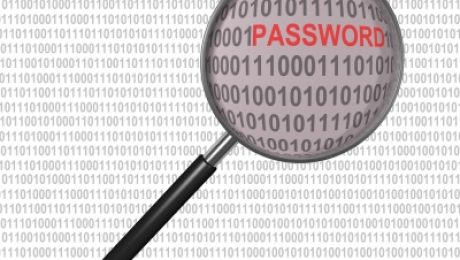
Most of my clients are surprised to learned that we spend a large percentage of our troubleshooting time on password issues, and within that particular category of issues, the majority of that time is spent on recovering or resetting lost passwords. They also worry that they are unusually bad at this aspect of their professional life, and are somewhat comforted to know that this is something that everyone, including C2, struggles with on a daily basis. Passwords are like the life insurance of technology usage – nobody wants it, but everyone needs it. I’ve yet to meet someone who was excited or pleased because they’ve been presented with a password prompt. It’s a chore, but you shouldn’t make it more work than it needs to be by leaving the management of it to a stack of sticky-notes, unsecured Excel spreadsheet or little black book that is safely tucked in a drawer of your desk, but unfortunately unreadable from your hotel room half way around the world.
Passwords aren’t going away any time soon
By now, you’ve probably realized that writing down, let alone memorizing passwords in today’s world is a losing proposition. Everything is internet connected, not just work technology – your doorbell, your fitness tracker, your thermostat, your car – everything has a password, and if you are doing it right, they all have unique, hard-to-guess passwords, right? Riiiight. Most of these types of services and devices rarely require you to enter the password, meaning you probably won’t remember them, or even realize they have a password that needs to be written down. But when it comes time to troubleshoot or access the service, you don’t want to be scrambling to find that password, or worse, wasting precious time resetting it.
Once you convince yourself that your current method of (barely) managing passwords isn’t going to be sustainable there is also the fear of letting someone else keep track of them for you. My clients’ biggest concern is, “What if my password management platform gets hacked?” which is a fair concern given that it seems like everyone and everything is getting hacked these days. There are no guarantees out there – hackers are clever and humans, as a rule, are careless enough that this combination results in security that is as flawed as we are. What I always tell my clients is that they don’t need to be perfectly secure – they just need to be more secure than the average person to improve their defenses significantly. I also remind them that they are more likely to be successfully hacked than a business whose primary mission is to protect your data. If there is one thing that criminals do not want to do is waste time chasing difficult marks. So make sure you’re not an easy target by upping your password game.
Next week – showing those passwords who’s boss
Image courtesy of Graphics Mouse from FreeDigitalPhotos.net

In my not so humble opinion, there is no lower form of life than those who take advantage of disasters and tragedy to spread misinformation, fear and hate, either for profit, political gain, or even worse, for their own entertainment. Sadly, the internet, as I have written about previously, is amazingly efficient at spreading information paired with the unfortunate inability to provide any differentiation between truth and lies. Ideally, this is how the internet is supposed to work – no one should have the ability to censor any of the information shared on the internet, but this double-edged sword cuts both ways.
Who can you trust for news?
The outbreak of the Corona Virus has dominated the news headlines lately, so it’s only natural to expect a lot of buzz in social media about the illness, and because the internet is a target-rich environment for anyone looking to spread misinformation, either for profit or general mayhem, naturally all sorts of crackpot miracle cures, conspiracy theories and racist stereotypes are finding audiences starved for information about the disease. It doesn’t help that the outbreak is happening in China, a nation with a history of other deadly viral outbreaks and a notorious lack of transparency, on top of having a bit of a human-rights image problem at the moment.
Unfortunately for us, most of the major social media outlets are already struggling to combat “fake news” and general distrust of scientific procedure and evidence on a wide variety of topics. While some have prevaricated on politics, most of them seem to have their heads on straight when it comes to medical matters, especially when misinformation can lead to significant health issues. Even though they have fact checking organizations publishing corrections, algorithms downgrading inaccurate posts, and moderators cracking down on pseudo-science discussion groups, plenty of misinformation continues to spread.
The “signal to noise” ratio on the internet is not getting any better, which only it makes it harder for those of us who are trying to make sure the information we receive not only confirms our beliefs, but is also backed by facts and scientific rigor. Here are a list of trusted organizations that can help us all separate fact from fiction online:
- https://www.factcheck.org/
- https://www.snopes.com/
- https://www.politifact.com/truth-o-meter/
- https://apnews.com/APFactCheck
- https://climatefeedback.org/
- https://www.poynter.org/ifcn/
Image courtesy of Stuart Miles at FreeDigitalPhotos.net

It seems apropos with all the recent chatter about our country’s Constitution to discuss a well known bon mot from an eminently quotable founder, Benjamin Franklin.
Our new Constitution is now established, and has an appearance that promises permanency; but in this world nothing can be said to be certain, except death and taxes.
Benjamin Franklin, 1789
I make no claim on being nearly as clever or influential as our esteemed sixth president founding father, but I can say with some confidence that we should add a third certainty: hard drive failure. If my thirty-odd years of working in technology has taught me anything, it’s that devices can and will fail. Whether it’s a device that is spinning magnetic platters at thousands of revolutions per minute, or tiny bits of metal and mineral pushing millions of tiny sparks around an object the size of your thumb nail, the laws of nature say that at some point, chaos wins and your orderly world of ones and zeroes turns into a lot of, “Oh no’s…”
“If you fail to plan, you are planning to fail.”
You can probably guess who said that, right? I’m pretty sure Mr. Franklin would have felt right at home with today’s technology. This week alone I’ve seen more hard drives fail than feels comfortable, and in at least 2 of those cases, the individuals did not have a backup of their data.
Mechanically, all hard drives will inevitably fail. Even though most models are supposedly built to run for years of non-stop operation, statistically, we are seeing that the average life span of a spinning hard drive to be between four and six years. Just because you’ve got a hard drive that seems to have beaten the odds and is still performing like a champ, the opposite is way more likely – you are working on borrowed time. And the same goes for drives that are younger – just because they haven’t hit their expiration date doesn’t mean something can’t go wrong.
Instead of planning to fail, why not plan for failure by backing up your data? For less than $100 a year you could be backing your data to the cloud with essentially zero effort. It almost takes more effort to not back up your data given how pushy Microsoft is with OneDrive, so why aren’t you you backing up your most important digital assets?
Image courtest of Stuart Miles from FreeDigitalPhotos.net

As you are reading this, Microsoft will have officially ended support for Windows 7 on January 14, 2020. It’s a testament to the popularity of the OS that despite Windows 10 being offered as a free upgrade for any licensed copy of Windows 7 or 8, it took Windows 10 nearly 4 years to finally surpass the installed base of Windows 7 users. Even now, though the upgrade is still being offered for free, 26% of all PC’s are still running Windows 7. In prior years, I had warned about charging headlong into upgrading to 10, as the process was fraught with problems, and some of you inadvertently upgraded through Microsoft’s rather heavy-handed and confusing update messages. Fortunately, though it still has its problems, the upgrade process is much more stable and many computers, even though they may be relatively old (in computer years), can run the “new” OS just as well as they ran 7.
January 15 begins the slow retirement of Windows 7
One of the things that is worrying most of my clients are the various dire warnings they are receiving from many software vendors that “Windows 7 will no longer be supported” by that company. When conversing with the support desks of these various software vendors, you can ask them point-blank, “Will your software stop running on Windows 7,” and you will receive the answer, “We no longer provide support for computer running Windows 7,” which doesn’t really answer the question. Any well-trained support representative cannot answer this question without getting into trouble, as any variation of “Yes, but…” will result their customers continuing to use an OS that is no longer guaranteed to get fixed by Microsoft if something breaks. And therein lies the heart of the matter.
Though we can’t guarantee it, it’s pretty likely that your software, if it was running properly on Windows 7 on January 14, will continue to run properly on January 15th. While it is technically possible that a software developer could code their applications to stop running if it sees your computer running Windows 7, you can see how that may not sit well with customers if a program they paid for just stopped working. Instead, they are taking a gentler path, hoping to use a thinly veiled threat/warning instead of an outright cattle prod.
In the short run, if you hit a problem with a piece of software that requires a call to tech support, you’ll get nowhere fast as soon as they notice you are still on Windows 7. Though the software may still be running despite the issue, you’ll be on your own to solve the issue (even if it’s not caused by Windows 7), and if it’s not running at all, you are out of luck.
In the long run, continuing to use Windows 7 will be a problem for everyone, as the Microsoft will likely stop producing security patches after a year if they follow a similar retirement path to the one used for Windows XP. Not only will this make the OS increasing dangerous to use, it will likely result in Windows 7 becoming more unstable as time passes, and performance will decrease as new hardware and software are optimized only for Windows 10.
Even though you will probably be just fine running on Windows 7 for the next few weeks (or even months depending on your environment), unless you have a compelling reason to not upgrade, moving to Windows 10 should be on your first or second quarter to-do list. Be prepared for some disruption, whether you upgrade the OS or buy a new computer with 10 already installed. If you need a primer on what to expect on going to 10, have a look at our three part series here:

Just saying the year sounds like the opening of a science fiction movie, “In the year 2020, human technology had long outgrown the archaic communication medium known as ’email’…”
To be fair, quite a few famous sci-fi films were wildly off on where we would be in 2020. Instead of interstellar travel by 2016 (Blade Runner), moon colonies and superhuman AI (2001: A Space Odyssey), or hoverboards and flying cars in 2015 (Back to Future Part 2), instead we have entire governments, economies and even generations struggling with overflowing, polluted inboxes based on a technology developed in 1972.
Email is 48 years old. Microsoft Outlook is officially 30 years old.
In celebration of exactly how much email has stayed the same, I’m cataloging past blogs I wrote about managing email that, sadly, still apply, even years later. Fortunately, they should still be useful to you, managing your email in the distant year “2020”:
- Petraeus-Gate and Fallacy of Email Privacy (2012) – TLDR: your email is not private. Seven years later, surprise surprise – still not private.
- Your email is not private (2014) – TLDR: Email providers host your email governed by Terms of Service that state they can read your email. Still true in 2020.
- Email’s growing problem (2015) – TLDR: Email boxes got huge, but programs to manage them haven’t kept up. Sadly still true, and even more so now that people have a decade or more of email stored.
- Dealing with oversized inboxes, Part 1 and Part 2 (2015) – TLDR: Part 1 has several ways you can thin out your bloated inbox. Part 2 discusses why you might not be deleting your emails.
- Get rid of those old email accounts (2017) – TLDR: Wherein I exhort you to get rid of your old email accounts. Full disclosure 2020: I still have my Gmail account that I created in 2005.
- What to do with all those old emails (2017) – TLDR: I discuss ways you can keep the data but not the email accounts. Three years and umpteen-thousand emails later, those old emails aren’t going away by themselves.
- How to spot fake emails (2017) – TLDR: I dissect a fake email that almost fooled me. Fast forward to now – fake emails are still around and trickier than ever, but the basic spotting concepts still apply.
Photo by Christin Hume on Unsplash