


If I get up on my soap box this week, I might not come down, so instead I’ll just link this small collection of articles that seemed to follow a theme. My selection has an editorial slant – a prerogative I am able to employ as a blogger, and if you’ve been reading my posts with a regular basis, you are probably fairly familiar with the regard with which I hold social media. “But Chris, if you don’t like it, why do you read/watch/participate in it?” Because you should never turn your back on something that has the potential to harm you.
Here’s what’s news this week in Social Media:
- Facebook reportedly had evidence that its algorithms were dividing people, but top executives killed or weakened proposed solutions
- YouTube auto-deletes comments with phrases critical of Chinese government
- Twitter labels Trump’s tweets with a fact check for the first time
- Bill Gates Conspiracy Theories Have Circulated For Years. It Took The Coronavirus Pandemic To Turn Him Into A Fake Villain.
- Twitter says it is not removing Trump tweets on deceased Scarborough staff member
- Roughly half the Twitter accounts pushing to ‘reopen America’ are bots, researchers found
That double-edged sword is looking a lot sharper on the wrong side, eh?
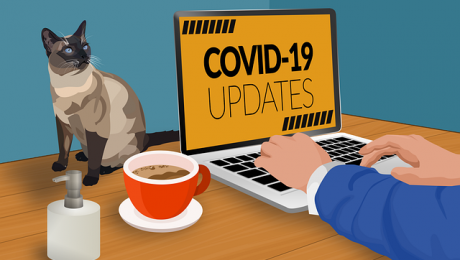
If there is one conversation I have almost on a daily basis with clients, family and friends, it’s about whether or not they should update their various devices, and especially their Windows computers. In times past (maybe 5 years ago) this was easy to answer, “Yes, always keep your software up to date.” Today, particularly in light of Microsoft’s latest Windows 10 update causing widespread havoc for many users (again!), the unfortunate punchline is now, “Maybe? It depends.”
Nobody likes that answer
It’s safe to say that when clients come to us with technical questions they would prefer situations to be a little more black and white. For certain things we can always say, “Yes, please apply the updates.”
- Your malware protection should always be kept up to date.
- Your smartphones should always have the latest operating system.
- Your firewall firmware should always be updated.
- …
I’m sure there are a few more, but unfortunately, the list of definitive “Yes’s” has become a lot shorter lately. Sadly, Microsoft is has moved to the top of the “Maybes” list, due in large part to their inexplicable decision in 2015 to source their testing and bug-checking to the public (via the Windows Insider program) instead of in-house QA which had worked fairly well for them up through Windows 7. Outsourcing testing of your products to millions of “real” users seemed like a great idea at the time, but unfortunately, it has resulted in much lower quality (and at times, disastrous) updates. The infinite monkey theorem has a corollary here in that while millions of “real” users can test an update, a well-trained team of QA testers could do it faster and produce better quality results without destroying user data.
“Should you be updating your Windows operating system?”
Frankly, Microsoft doesn’t really give you many options for deferring updates without taking rather draconian measures to circumvent their forced march. On top of this, other software platforms that professionals use to get their work done are also trying to match Microsoft’s inexorable update pace with their own updates, and everyone is trying to stay ahead of the criminals. As a result, we seem to be assaulted with a constant barrage of changes that at best don’t break anything, and at worst, break everything. All that being said, our answer is still “yes” but with the caveat that one should plan to apply updates, not just blindly apply them as they appear. When making a decision to update (if you are given a choice) you should always ask yourself these questions:
- Is my data backed up?
- Do I have some other way to do my work if this breaks something?
- Is this update fixing a serious security issue?
- Is this update fixing a serious operational bug?
- Is now the right time to be applying an update?
The last question is probably the trickiest one to answer. Oftentimes, an update can lead to some downtime, either while it’s being applied, or perhaps while it’s being rolled back because the cure was worse than the disease. If you’ve got important work that needs to be done now, perhaps defer that update a few more hours, but don’t forget to come back to apply it.
Image by thedarknut from Pixabay
If social media posts are any indication, most of you are going more than a little stir crazy as we stumble into the 9th official week of the Covid-19 Pandemic. Many of you are taking on new hobbies or rediscovering old ones, resulting in an explosion of sourdough diversity, hilarious pet/family videos, close-up magic tricks, and a plethora of homemade crafts ranging from wondrous to WTF. And that was just what graced my screens in the past hour. If you’ve grown tired of re-arranging your kitchen cabinets or closets, or moving your office furniture around for the umpteenth time trying to find the perfect angle for your next video conference, I’ve got some “rainy day” activities that are also perfect for distracting you from the quarantine crazies.
From the “Here he goes with the lists again,” department
- Create a list of your home’s service providers. Create a document listing every service you use in your personal life that has the following info on it: Company name, service provided, website address, customer service phone number, account number (or login ID), payment method (and last 4 of card used) and monthly billed amount (avg or fixed). And I’m not just talking about tech services – you should list utilities, subscriptions, anything you consider important enough to pay monthly (or annually) AND the services you may not be paying for (e.g. personal email accounts from Yahoo, Gmail, etc.) Having the info handy will save you a lot of stress when that service is suddenly discontinued or not operating as expected. And by handy, I mean, print it out and stick it somewhere easy to get to, like your fridge or home bulletin board. Also keep track of where you saved that file on your computer. And don’t put any passwords in it – that’s the next to do.
- Put your passwords into a password manager. This is a task that people dread doing if they haven’t already done so, but it’s surprisingly easy once you get past the decision to adopt the password-manager lifestyle. Pick a password manager. Our family is using LastPass, but my clients also like 1Password, and Dashlane, all three of which I can comfortably recommend. They are affordable, offer family plans and sharing options, and all have easy-to-use smartphone apps and browser plugins that will simplify tracking and using passwords. Because let’s face it, passwords aren’t going anywhere – most of us have dozens, if not more than one hundred passwords to keep track of, and if you are observing proper security, you are using unique passwords for all your important sites, aren’t you? No? Take a look at the next rainy-day activity.
- Change your weak, overly-used, probably compromised passwords. Have a visit to https://haveibeenpwned.com/Passwords and type in one of your “favorite” passwords. If it shows up on that list, you should immediately go out and change it anywhere it’s been used. Even if it hasn’t been found on the dark web it’s only a matter of time, so if you’ve used it more than once, change it to something unique and hard to guess. This will go real quick if you’ve created a list of services (#1), and started using a password manager (#2), which will allow you to create and save these passwords. Once this particular activity has given you sufficient gray hairs, try entering your email addresses on that same site.
Keep going, don’t give up.
This doesn’t have to be done in a day – for some of you, this may take several days, especially if you can only devote an hour or two to the project, but you will feel a lot more accomplished than rearranging your kitchen junk drawer for the 3rd time, and you will be a lot more secure and prepared for when something other than a pandemic strikes. Add more entries to your list from #1, then take a look at how many passwords you’ve put in #2. Add more passwords from family members who don’t have the technical competence or patience to do it for themselves. Marvel at the number of passwords you have in your personal database, and then give yourself a reward. Those baked goods won’t eat themselves!
Image by thedarknut from Pixabay
IBM recently released the results of a survey of 25k U.S. adults that attempted to measure changes in behavior and preferences caused by the COVID-19 outbreak. Among the many factors surveyed, two shifts in behavior and preference may have a significant impact on what our future workplace looks like, especially the downtown towers of glass and steel many call their office. As you might have guessed, a large percentage of the respondents indicated that would like their employer to continue to offer a work from home option upon return to normal operations, and over half said they would like to continue telecommuting as their primary way of working. As an interesting corollary, 20% of the respondents that used public transportation said they were likely to discontinue use of buses, trains and subways, and nearly 30% said they will likely use public transportation less. This may not seem significant in cities like LA, but when considering financial hubs like New York for whom private transportation just isn’t practical, how will these people get to work? My guess is they are planning on not having to commute at all (or much less frequently).
People prefer 10-foot commutes. Who knew?
Obviously, working from home isn’t an option for some professions and industries, but for a large majority of our clients, not only are they able to get the job done from just about anywhere, they are doing it just as well, if not better from the comfort of their home office. Clearly, the technology that enables us to work productively from home (or anywhere) exists and our infrastructure seems to be holding up (so far), so what each business needs to determine is what we stand to gain and lose by changing where we work, and whether or not their organization is ready, both technically and culturally, for this change. Here are some things to consider:
- Are you equipped for longer-term, highly-secure remote access? Many of our clients had some of this infrastructure already built (though not sufficiently sized to take the whole company remote!), but just as many had to scramble to get there with less-than-elegant solutions. If you are considering making remote workers a permanent part of your workforce, do you have the proper technology in place? If not, what would the cost be, and could it be offset by savings in real estate expense?
- Do you need to update your company policies and procedures to account for a remote workforce? There are more than a dozen pitfalls in this area that we have all been tacitly ignoring in order to abide by the lockdown, but once the danger has passed, they will have to be addressed if you plan on making telecommuting a permanent part of your organization. Here are just a few examples: workers are using personal property to handle company data. Who’s making sure those computers and mobile devices are safe? Who should be paying the internet bill? What happens if my personal computer breaks while it is being used for work duty? Who pays for repairs? Do you have metrics in place to measure everyone’s productivity? Are they truly just as (if not more) productive working remotely?
- Should telecommuting still be considered a perk or a new workplace standard? A ton of people are getting a taste of what it’s like to work from home, and while plenty of you would probably be a lot more productive if you also didn’t have kids and/or spouses complicating things, not having to drive (or ride) to work everyday benefits just about everyone and the environment at the same time. It even benefits everyone that still has to commute because their job requires it. Culturally, I still think we’re a bit far from seeing it as a standard workplace expectation, but given the benefits to the climate alone, how can we go back?
Image by thedarknut from Pixabay
One of the unfortunate side-effects of working from home is a tendency to let down your guard, which is only natural even for hardened telecommuters and virtual business operators like yours truly. Heck, some of you aren’t even putting on pants before starting your day, and if you are (relatively) new to working from home, initially there is something deliciously subversive attending a conference call in sweats and slippers. But as I’m sure all of you have now come to realize, that particular shine wears off real quick, almost to the point where putting on “real clothes” seems like an infringement on your Pandemic-given rights. Being some place other than home – that fabled place called “Work” – allows our brains to put on its business suit and gives us an edge in guarding against internet hijacks and hi-jinx. Now that you are working from home, and hopefully comfortable doing so, your brains are slouching around in pajama bottoms, and the hackers know this.
Don’t drop your guard!
Though it may feel different, the email approaches that hackers are using in an attempt to fool you into giving up your money, passwords or data are the same tried and true methods they’ve been using for years, some with a little more sophistication than others, but there are still plenty of ways to spot the fake emails.
- Make use of spam and malware filters. If your email service does not have this built in, you need to move to a new provider. Even the free-mail providers like Yahoo and AOL have basic filtering in place, and some providers like Google and Microsoft, have excellent filtering even on their free accounts. If email ends up in your “junk” folder, it’s probably there for good reason.
- Roll over (don’t click) links first! Outlook and just about every email client (application or web-based) has the capability to show you where a link is heading without having to actually click it. Roll your mouse cursor over the link – DON’T CLICK – and a pop-up with the actual hyperlink should appear (if there is one). You may be surprised to see that it isn’t the same as what is actually spelled out in the email. You can preview links on a phone by pressing and holding a link, but if you are fat-fingered like me, this may result in clicking through, so I DO NOT recommend trying to preview links on a phone unless you have no other recourse.
- Pay attention to the sender’s email address. Microsoft, Google or Yahoo is not going to send you an account closure warning from some random domain ending in “.co.uk” nor are you going to get bank account warnings from an address ending in “banksecurity.me”. Don’t let the alarming subject distract you from the glaringly obvious clues. If it looks at all fishy, err on the side of caution and call someone.
- Sometimes the sender’s address is real, but the email is fake. Unfortunately, the one that seems to trick people the most are the ones sent from compromised email addresses. Hackers get someone’s email password (either via phishing email, dark web or easily guessed combos), and rather than changing it, they covertly take over the account and use it to trick everyone on that person’s contact list. Devious and very effective. If you get an email from someone that immediately leads to a password request, stop and back away from the keyboard. It could be a phishing trap. Pick up the phone and confirm that the email was legitimate.
- The government does not accept bitcoin. If you get an email from a government agency asking you to pay via Bitcoin for a fee, citation, back taxes, etc. it is not a legitimate request. Neither the FBI nor the IRS will contact you via email to ask you for payment via Bitcoin or gift cards or wire transfer.
- Your friends and family aren’t going to ask via email for gift cards to help them financially. This is a commonly used (and relatively successful) tactic by hackers that have compromised an email account. Always call (ignore that the email says to not call or that they lost their phone or any other reason provided) to confirm that they sent the email. Ninety-nine times out of 100 it is not a legitimate request.
- Know your vendors and service providers. If you get an email from Chase Bank warning you that your account is compromised, but you don’t bank with them, that’s a bit obvious, but just received a voicemail? Make sure it’s from YOUR phone provider, and not an fake email. Just got an efax? Do you even subscribe to an efax service? Maybe not legitimate. When in doubt call, if there is a phone number available, and if not, check if you can log into the service by going to it WITHOUT using a link provided in an email. You should have your critical service providers (Internet, Email, Cell Phone, Banks, etc) memorized, and if your brain is a bit too crowded for that, have it written down with a list of account numbers (partials just to be safe) and contact numbers or website addresses. If you have elderly relatives, make a list for them and have them tape it up somewhere prominently near the computer.
Image by thedarknut from Pixabay
Many of you can now call yourselves veteran telecommuters, and hopefully you’ve done it without incurring substantial damage to your health or family situation. While residential networks have held up surprisingly well, we have definitely seen the strain during the new internet rush-hour which starts roughly when the kids finish up classes mid-afternoon, and lasts well into the late evening as families stream and game and socialize. We’ve also seen plenty of clients hit the limits of patience with their home technology including the various trials and tribulations Microsoft continues to put us through with Windows 10. Plenty of you have presented us with some real humdingers that definitely require an experienced technical eye, but we’ve twice that in issues that could be solved with a return to basics.
Things to try while waiting for IT to return your call
- Did you try turning it off and back on?
This may sound sarcastic, but all of us were spoiled by the stability of Windows 7. In the last half of its life, that OS was an absolute ROCK of stability. Many of us could go weeks without rebooting, but this is NOT the case with Windows 10, especially if you are running it on a machine that was built for Windows 7. Try rebooting. - Check your connections.
Stuff comes loose or unplugged, especially in home offices where cabling and device placement is a cross between Cirque du Soleil and MacGuyver. Notorious culprits include half-out HDMI cables and Ethernet cables with broken tabs. Also, USB ports can get worn out with repeated use, so try switching ports (if you have others) or replacing cables that look worn out. - Reboot your router/extender/modem.
If everyone in the house is having internet issues ranging from slowness, intermittent connections or straight-up no internet, try rebooting the primary internet device in your house. Not sure which one that is? Take a picture and ask your friendly IT guy, or give your internet provider a call. You know who that is, right? If it’s just Wifi and you use a mesh system or extenders, try rebooting those (see the first tip). - Check for updates.
Unlike its hallowed predecessor, Windows 10 needs to be updated regularly. The longer you go without updating, the more problems will crop up. The same goes for many other devices in your household, including things like streaming boxes, smart TVs, doorbells, security cameras, tablets, the list is endless. If you are having trouble with something, check to see if there is an update for it. - Take a picture of the problem.
With the more transient issues, a picture is worth a thousand words attempting to describe a problem for which you have no frame of reference. It’s likely we’ve seen it before and can maybe solve the problem faster, and if not, we’ll add it to our scrapbook of crazy things that happened to our clients’ technology. - Google it, but tread carefully.
In case you didn’t know, Google is IT’s best friend. It can be yours too, BUT know that bad advice is just as prevalent as good advice. If the fix makes you cross-eyed or sounds at all risky, leave the fixing to us. Our Google-fu is strong, but we always get a kick when a client shares something relevant they found via their own Google search. - Try a different way to do it.
Primary application of this principle? The website that won’t load. Try a different browser. Microphone not working? Try pairing your Bluetooth headset to your computer. Printer not working? Try printing from a different computer (or smart phone). - Seriously. Did you try turning it off and back on?
We’re not expecting you to become IT black belts overnight, or even over the course of six weeks or six months, but you should know that IT guys truly appreciate it when they know their clients gave it the old college try. Who knows, you might actually solve the issue, and then you can proudly say the six words we like hearing the most, “Never mind, I fixed it myself.”

Top image by thedarknut from Pixabay
Hopefully by now you’ve gotten your “home office legs” and have settled into a semblance of normalcy. If you’ve not worked from home before on a regular basis, you probably had to gin up some quick fixes and stop-gap solutions early on into this creeping crisis, but now that we are a month in, some of those hacks are probably not holding up. Like last week, I’ll be recommending products with Amazon links but I do not receive any sort of compensation or consideration for recommending these products.
Workarounds for Home Office Challenges
Reminder: If you use Amazon, please take a moment to let them know they need to treat their workers better.
- Need a better webcam? The popular webcams are still sold out everywhere so if you need something quickly, you might be able to use an “action cam” like a GoPro or Akaso plugged directly into your PC as a decent substitute. Keep in mind not all models have this capability; older models may require some extra software or firmware to work as a webcam. I’m using an Akaso EK7000 as my current webcam with a desk-mounted clamp and arm to position it. Bonus – it can be used as an action cam once normality resumes!
- Using your phone as your videoconferencing device? If you are solving the webcam issue by using your smart phone, you can position it better using an adjustable arm. It’s also great for keeping your phone handy, even when not being used as camera. If the arm is too bulky, you clip it to the top of your monitor (if it’s thin enough) with a clamp like this. Make sure you check the thickness of your monitor, and if it doesn’t have a bezel, know that the clip may obscure part of your screen or even damage the screen. Pad accordingly!
- WiFi signal not great? You can hard-wire your home office workstation without running cable by using Ethernet over AC devices like this one. Install is pretty easy, but keep in mind that electrical wiring in older and/or larger (+2500 sq/ft) houses may not be well suited to this use, depending on where the two endpoints are installed. With these types of devices, the higher-priced models equal better performance, so budget accordingly, and make sure you keep your receipts in case you have to return them.
- Where’s the dang charger? In our house, we have at least a dozen mobile devices, and never enough USB chargers. I fixed this by setting everyone up with magnetic cables. This way, the cables work for all devices, and with some strategically placed chargers and cables, everyone can be sure there is something nearby that they can use. Keep in mind that these are for charging only – they do not transmit data. The little magnetic bits will usually fit most devices, including things like Bluetooth headphones, but may not work with some cases or unusually placed USB ports.
- Videoconferencing background NSFW? A lot of us have set up to work in areas of our home that can create less-than-professional moments for videoconferencing. While I don’t have a gadget for creating a private office for you in your home, you can use a pop-up, chair-mounted screen to keep your background safe for work. A rolling garment rack and sheet will also work great, and can be set up and broken down quickly for repeated use. Bonus – it can be pressed into regular laundry-day usage when not helping you with your internet close-ups!
Image by thedarknut from Pixabay
In case you haven’t already figured it out, the pandemic isn’t going anywhere, and as infections and deaths continue to rise in the US, you can probably count on having to work from home for at least another month, possibly longer. If you’ve been thinking about your home office situation as temporary, it may benefit you (and whoever you are living with at the moment) to instead think of it as a worthwhile investment to improve your well being and productivity.
Equipping your home office
We are working at home specifically for health reasons, so we should not be ignoring other facets of our well being especially when it’s relatively easy to maintain. Here are some products that I am confident will improve your home office setup, especially in the ergonomics department. Normally, I wouldn’t hesitate to provide you Amazon links to these items, but I’m doing so now with the caveat that if you purchase anything from them that you spend at least a few minutes providing some feedback to them on treating their workers better.
Note: I don’t receive any compensation from any of the links I provide below.
- If you had a standing desk at work, or are looking to try one out, there are a lot of options out there, but if you’d rather not spend an arm and a leg, take a look at Autonomous.ai. I use the SmartDesk 2 Premium model all day long. Putting one together might take two people, but I love it, and it’s inexpensive enough that if you decide standing isn’t for you, it’s still a great sitting desk. Ikea sells a cheaper, hand-cranked version if you don’t mind applying elbow grease to move it up and down. If you’ve already got a desk that’s not going anywhere, but still want to give standing a try, have a look at something like a desktop version of the standing desk. Keep in mind that most traditional desks aren’t suited for modern day keyboard ergonomics to start, so these types of solutions, when in “sit mode,” raise your keyboard and mouse an additional inch, which may result in aggravating any existing discomfort or injuries.
- Thanks to mass adoption of computers in the work place and monitors continuing to become lighter, bigger and cheaper, monitor arms have become very popular and affordable. I’ve used a number of different models, but the Amazon Basics models are dependable, sturdy and priced modestly for their quality. Keep in mind that your monitors must have VESA-compatible mounting holes on the back for most monitor arms to work properly. Make sure you pay attention to the mounting requirements – most models require some sort of lip to clamp onto, or a hole through the desk itself, and make sure your actual desk construction can withstand the concentrated weight of the stand and monitor. Hollow or lightweight desks may bend or even crack from the force. You can get stands that use a heavy base instead of clamps or holes, but they don’t offer as much stability or flexibility in placement.
- If you are using a laptop and the built-in screen as your primary home office computer, you can (literally) elevate your whole computing experience by standing the laptop up on one of these devices. If you regularly move around, get a folding, portable one like this. Bringing your laptop screen closer to eye level is critical for proper ergonomics, but if you go this route, you should NOT be using the built-in keyboard and mouse, so make sure you account for that in your decision. See the next item for a solution to that problem.
- Most laptop keyboards and trackpads aren’t built for long-term use, at least for most normal-sized humans. The keys are typically smaller and spaced closer together, and trackpad will give you RSI if you rely on mousing at all throughout your day. Treat yourself to a full-sized keyboard and separate mouse. Logitech’s wireless entry-level combo is surprisingly affordable, and will leave you money to get a decent wrist-rest. I use a full-length model like this all day long, and you know how much time I spend at my keyboard.
- If you are using an older, smaller monitor, consider something newer and larger, especially if the bulk of your day is spent working on screen. The minimum I recommend is 20″ and it should have a resolution of at least 1920 X 1080. You don’t need to go 4K unless you have the eyes of a hawk or job functions that require that level of resolution, and buying something with a diagonal larger than 27″ may not work ergonomically with your home office setup, especially if space is at a premium. Not all monitors are created equal, and generally cheaper monitors may not be as crisp or as bright as you might want, so check the reviews carefully. Generally, my clients have been served well by Acers’ moderately priced monitors, like this 20″ model, but if your budget is more robust, the Dell Ultrasharp 24″ monitor is eye-poppingly gorgeous and highly recommended.
When discussing investments in your home office technology, I like to remind folks that equipping your home office should hold a similar level of consideration to that of choosing a mattress. You are going to be spending a lot of time on it, so why not spend accordingly?
Image by thedarknut from Pixabay
The majority of our clients are now in the midst of the third week of California’s shelter at home mandate. For the most part everyone seems to be settling into a semblance of routine, and our residential internet services seem to be holding up better than I expected – I’m happy to be wrong about my predictions in that regard. However, not all of you are comfortable or as productive as you would like to be. In case you haven’t heard this from someone else already, let me be the 38th person to reiterate: “It’s OK to be less productive than you were in the office.” However, let me tack on my own special slant: Take advantage of your new home office and specifically, one of its core technologies to regain some joy during these stressful times.
The overlooked benefits of videoconferencing
Though I find no small amount of professional satisfaction in solving your technology issues on a daily basis, a recent experience reminded me just how important and powerful something like videoconferencing can be to everyone, not just business professionals. One my older clients was struggling with getting a popular videoconferencing platform running on his PC. Once we had discovered where his webcam was (it had fallen down behind the desk but, fortunately, was still attached) and got it re-situated properly at his desk, I was delighted to discover why he was so desperate to get it working – he was scheduled to attend a Sunday dinner with his family. When he logged into the meeting, he was greeted with cheers and celebration from literally dozens of family members, arrayed on his screen like the opening credits of the Brady Bunch. He was so overwhelmed he completely forgot about me on the phone, and if there is ever a time when I am glad to be forgotten, it would be for moments like these.
The following day, while meeting with some fellow consultants and business owners for our monthly networking meeting (via videoconference, of course!), one of our members who works with clients primarily via videoconferencing shared how she has also been using that same platform to socialize with family and friends by playing a trivia game together, like you might at a bar. This was both ridiculously obvious and revelatory, and it occurred to all of us that our clients might be missing this overlooked usage of videoconferencing.
Obviously, if you aren’t the bill-payer for your work videconferencing account, please make sure it’s OK to use it for non-work related activities. If the account is shared, this may affect your co-workers ability to conduct business, or you might have an unexpected guest show up in your recreational meeting. Most services like Zoom, Join.Me and GotoMeeting offer free accounts if you need or want to keep it separate, but there are limitations in the free offerings, usually in meeting duration and number of people that can attend. That being said, the costs for a paid account are relatively modest, and once you get a taste for what’s possible, you may ask why you hadn’t done it sooner.
Thing you might consider trying over videoconferencing:
- Sunday Dinner – this one is surprisingly popular and actually pretty common, even before the pandemic. Set up a laptop at one end of the table, hopefully positioned so everyone can see and be seen. Turn up the volume and pass the mashed potatoes!
- Virtual Coffee/Lunch/Drinks – get together with your co-workers or clients, but here’s the catch: talk about anything except work!
- Virtual Exercise – my wife just did yoga with her friends over the weekend, and we also took a walk around our neighborhood while videoconferencing with a friend in San Diego.
- Take Music/Dance /Art Lessons – there are a ton of folks out there who make their living exclusively by teaching other via the internet. Why not spend a few hours each week learning something new!
- Go through your photos together – I know you’re thinking, “Ugh, virtual vacation slideshow? No thanks!” but how about spending some time sifting through family photos with distant relatives and sharing stories and memories that the photos evoke.
- Play a videogame together – if you haven’t played a game with or against someone via the internet, you are missing out on something really fun. It doesn’t have to be Fortnite or Call of Duty or something requiring the reflexes of a teenager – why not virtual Mahjong or Bridge or a 6-hour marathon of Dungeons & Dragons!
Keep in mind some of your less, tech-savvy family members or friends may be challenged the first time around, but it will be worth the effort in the end. Don’t let physical isolation and some solvable technology issues keep you from connecting with most important people in your life.
Image by thedarknut from Pixabay
With the governor declaring essentially a state-wide shutdown of traditional workspaces, almost all of you are transitioning to some form of remote operations, up to a full shutdown of your physical office spaces and sending all of your employees home to work. While I consider myself a work-at-home veteran – this will be my eighth year running C2 from a home office – I can definitely say two things: firstly, none of us in IT have ever seen anything like this (though I did write a plan for EY during the SARS epidemic), and secondly, the IT world is mostly ready for this, technology-wise. But that doesn’t mean everyone else was ready for the Tele-pocalypse.
Many of you will be working from home, long-term, for the first time in your professional lives.
Whether you are a principal, manager or staff, everyone will be facing many of the same challenges:
- Residential internet is not business-class internet. Some of you may not have broadband because you’ve never really needed it. Even if you have broadband, it’s shared with everyone in your neighborhood, all working, attending classes, or just trying to enjoy a little entertainment. This may result in poor VPN connectivity, spotty VOIP phone calls, unreliable remote access connections, and general internet slowness. I know the ISP’s are trying to address this, but I’m not sure how much urgency they are putting into their effort, at least at the leadership levels. If you’ve been relying on DSL or your phone’s hotspot, it’s time to check to see if broadband is available. Get at least 25MB down and 5MB up per person in the house hold.
- Residential-class WiFi may not be reliable enough for your work. Judging by how many calls I received even before the Tele-pocalypse hit, most residential WiFi is weak and unreliable. This will be bad now with the increased traffic, and possibly may get even worse if you live in high-density buildings like apartments. WiFi signals don’t abide walls, and if your neighbor decides to put in a high-powered WiFi router or mesh system, it could step all over your weaker Wifi, changing your normally reliable wireless network into a troubleshooter’s nightmare. If WiFi is your only option, try to sit closer to the router, or if you can, get wired with an Ethernet cable.
- Most of you don’t have good monitors or computers at home. Currently there is a bit of supply-chain issue inhibiting everyone from gearing up with quality technology, mostly due to the rush on store shelves of people anticipating the Tele-pocalypse, but also due to a long-standing tariff battle with China, the largest supplier of technology to the United States. Also, you may have no idea if what is available is what you actually need. If you are shopping, get a 24″ monitor (maybe 2 if you are used to using dual-screens), a comfortable, ergo-correct chair, a wireless keyboard and mouse, and a computer in the $400-600 range at minimum. Refurbs are OK as long as you get a warranty and it was made in the last 4 years. Don’t go any older.
- Using a home PC to remote into your office computer is disorienting if you’ve never done it before. It will take some time to acclimate, and whether you wanted to or not, you’ve now doubled the potential for technology issues, malware infections and what I affectionately call “general tech orneriness”. Stuff is going to stop working, or start behaving strangely, and it will slow you down. A coworker is not likely to be nearby to give you a hand, and IT may not call for several hours. You’ll get more comfortable as time goes on and you get familiar with remote technology quirks. IT will stamp out the big bugs. It may never get back to the old normal, but it will get better.
Image by thedarknut from Pixabay