



As someone who is beyond jaded by social media and the mega-corporations behind them, this news isn’t surprising, and I actually expected to see it long before now, but it gives me no pleasure in seeing our worst fears play out. Motherboard has published a story today about a Nebraska teenager and her mother being charged with several felonies and misdemeanors surrounding the teen’s self-induced abortion after their Facebook DM chat logs were turned over to Nebraska law enforcement by Meta. Despite the divisive act at the root of this incident and the current political storm raging around the overturning of Roe V. Wade, I’m hoping it highlights rather than distracts from the point of this week’s blog.
Social media is the exact opposite of privacy and confidentiality
Social media and its daily use have become so pervasive that for most people it’s just a de-facto part of how they live their lives, to the point where many can’t conceive of life without it. Regardless of whether or not the women from the above story acted illegally or immorally, there should be no equivocation about whether or not a social media platform will turn over your data to law enforcement. The answer is, “Yes, they will.” In this particular instance, Meta (aka Facebook) was abiding by a court-ordered search warrant. This doesn’t excuse them morally, but also falls well within expectations we have called out, over and over again. Following the overturning of Roe V. Wade, Motherboard reached out to all the major social media platforms asking them how they would handle just these types of requests in relation to women’s health and pregnancy rights, and none of them were prepared to go on record saying they wouldn’t do exactly what Facebook did in the above case. Unfortunately, abortion simultaneously highlights and distracts from the issue – it shouldn’t matter what is being kept private – only that it is private. In case it wasn’t clear: don’t expect anything you share on social media to remain private, regardless of how that platform professes to honor that privacy. The only commitment they are required to honor is to their shareholders or the equity firm backing the company, possibly even over the laws of the land.
Image courtesy of Stuart Miles at FreeDigitalPhotos.net

Social media is literally ablaze with heated discussions about a wide variety of workers’ rights issues: pay inequity, workplace toxicity, exploitation, unionization efforts, and working from home. On the last one, with Covid’s impact slowly waning, employers are starting to ask people to come back to the offices, and many folks have grown more than accustomed to working from home, to the point where everyone is questioning whether working from home should still be considered a privilege or a new standard that industries and employers should guarantee. As someone who commuted more than 2 hours a day for decades, working from home will always have a special place in my heart, but it does come with some serious downsides that everyone should consider.
I’m speaking as an employer and an employee
Of course, I’m biased – everyone is, and I’m particularly biased because I’m a business owner and an employer. Our entire business is virtual – we’ve been “working from home” from day one, years before Covid was anything more than an exotic, unknown virus. Going back to the office isn’t something we need to worry about at C2, but that’s actually not the part to which I want to draw your attention. What I’ve observed over the years as a both a professional and as a consultant, is that our work life balance hasn’t become better as technology enables us to work anywhere at any time, it’s actually done the exact opposite: work permeates everything we do now, especially since the advent of smartphones and the internet. And while it can be said that personal life also permeates work, I think you all will agree with me that it’s nowhere near the same level as work crossing over into personal, and for many traditional employers taking personal time during scheduled work hours is only tolerable in small amounts. Of the many professionals I speak with on a regular basis who work from home (either full time or on some sort of mixed schedule), most acknowledge that they work “all the time,” and yes, while many are able to mix in personal time with work time to give them more flexibility in their day, work-life balance ends up tilting drastically towards work for most of them because of how easy (and profitable) it is to be working.
Also keep in mind, when white-collar workers extend their business hours, the industries and services that support them must also extend their hours, and many of those folks can’t work from home nor enjoy “flex time” because the very nature of their jobs just don’t allow for it. Remember when we “celebrated” the working “heroes” who couldn’t stay home during the pandemic because they were “essential”? We seem to be back to denigrating them for not wanting work minimum wage jobs, long hours with no health care or retirement benefits. There’s a reason why unionization efforts are suddenly making headlines.
The real question we should be asking ourselves is this: just because we have the technology that enables us to work anywhere at any time, does it absolve us from continuing our quest to work smarter not harder? We seem to be growing in the opposite, and possibly wrong, direction. It’s definitely not healthy, and it doesn’t really seem to be closing that gap with the 1% – in fact that gap continues to widen despite our increased efforts. It’s not that nobody wants to work. We are all working too much and despite the extra effort, we seem to be backsliding both economically and culturally.
Image by StockSnap from Pixabay
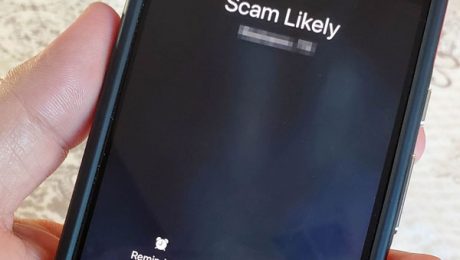
It happens to all of us. You are elbow deep in your day’s work (or fun, if you are fortunate!) and your phone buzzes. “Unknown Number” is calling you, and it looks familiar because it’s the same area code and possibly even same prefix as your number. Is that your friend’s new number? Nope, it’s a robocall offering you an extended car warranty or something else completely useless. Your phone helpfully offers to block future calls from this number and flag it as spam, which you dutifully do, hoping to forestall future calls from that number, and possibly provide some cover for everyone else. But should you be marking it as spam?
Why on earth would I NOT mark it as spam?
Robocallers typically use spoofed phone numbers, meaning the number that shows up on your phone when the call comes in is not the actual number being used to make the call. You may have seen a similar tactic used by hackers when sending out phishing or scam emails, most notably the one that comes from your own email address to yourself, purportedly from a hacker has compromising information on you that they will keep private if you pay them hush money. The proof that they have hacked you is this email from your very own email address. The fact of the matter is that spoofing email addresses and phone numbers is trivial to do, and on the email side of things, it’s also trivial to detect, but not so much on the mobile phone side of things if the carriers’ current efforts are any indication. While I’m fairly certain that the carriers could be doing more on the technical side to verify and disqualify calls using spoofed numbers, they’ve done between nothing and minimal effort about it at all, to the point where congress is having to force them to do something, even if it’s barely scratching the surface of the main problem.
The one thing that most carriers have done is implement a database that collects your spam reports and then uses that to provide some context on calls coming in, ala “Scam Likely” labels, etc. on unknown numbers. Essentially, it’s a user-powered blacklist, but that’s a problem because we are reporting numbers as spam that aren’t actually tied to the spammer. In fact, the number might actually be a legitimate business that has now been unfairly tarred and feathered for an act they didn’t actually commit.
This actually happened to a client last week, and the impact was almost immediate. On top of getting dozens of irate and profane return calls from people who thought they were calling the spammer, their main business number was now showing as “Potential Spam” when they were trying to call their own clients. The robocaller apparently spoofed enough calls from their number to get it flagged in multiple carrier’s “Spam list”, which requires the business to appeal the unfair labeling at each carrier. On top of being highly disruptive, this is potentially damaging to them and there is literally nothing they can do to prevent some robocaller from doing it again and starting the process all over again. I’ve had this happen to clients previously, but the backlash was never as immediate and damaging as this latest unfortunate event. Once again, we have created another dual-edged tool that bites back harder than it protects. Meanwhile, carriers stand around wringing their hands and crying crocodile tears on their big piles of money. The next time you receive a spam call, think twice about marking it as spam. Unless you’ve received repeated calls from the same number it’s likely not going to have any impact on the spammer because it’s a spoofed number, and it might actually sideswipe a local business or family inadvertently. Instead, redirect that annoyance at sending a sternly-worded email or voicemail to your local congressperson to ask them why we are still fighting robocalls after all these years.

If you are a long-time reader of this blog, you’ll know that while the majority of our focus is on business technology, I like to keep an eye on all technology, especially issues that can affect our quality of life and personal safety. Hondas are very popular (even here in Los Angeles where it seems like every 3rd car is a Tesla) and according to at least one statistics website, Honda accounts for between 8-9% of the U.S. car market in 2020 and 2021, and the Honda CR-V is near the top of the list of best-selling vehicles for the past several years. It’s safe to say that there are probably millions of Hondas on the road right now, and apparently any that are accessed using a key fob are vulnerable to a hack that allows attackers to unlock car doors and remotely start engines if the car has that capability.
What this means for you
If you own a Honda, you may want to give this article a read, which was based a relatively unknown vulnerability dubbed “Rolling-PWN” by the researchers/hackers that discovered it. The vulnerability is documented and published in the National Vulnerability Database run by the National Institute of Standards and Technology, which is about as official as you can get in terms of documenting vulnerabilities. Despite this, Honda has yet to confirm or even acknowledge the issue. Which also means that there is very little you can do about it other than the following:
- Reconsider what sort of valuables you keep in your car, even if you don’t drive a Honda. This particular hack may not be limited to just Honda according to the researchers. It just happens to be the manufacturer they’ve tested and confirmed vulnerable across multiple years and models.
- Even though they may be able to start the car, they can’t drive the car because they can’t exploit the proximity requirements of the key fob…yet. Regardless, if you park your car in a garage, make sure that it is well ventilated. Carbon monoxide kills, and some prankster might put you in real danger by leaving your car running for hours in garage with poor ventilation.
- Perhaps write a letter to your local congress-critter (Representative and Senator) asking them to look into Honda’s seeming disregard for a significant security issue. If you are friendly with a local Honda dealership (because you own a Honda and use them for service), you could also stop in and show them the article and a link to the exploit on the official government website of vulnerabilities as well. If enough of us raise our voices, perhaps some of these big companies will take notice!

You may not realize it, but your organization is probably using one or more free email accounts from platforms like Google and Microsoft. Smaller companies may still be using them as their primary email accounts (let’s talk – you need to stop doing that!), but most have moved up to what we call “enterprise-grade” versions from the same providers. Despite upgrading their email to the more secure, paid services, many companies opt to continue using free-mail accounts for various applications like email copier scanning, Quickbooks invoicing, and automation systems that send out email alerts. In the case of the latter two, not having this functionality could result in some pain or even safety concerns.
What did you do, Google?
I looked back at my long-standing free Gmail account to see if Google sent any notifications out about this change. I don’t see anything in an email, but it’s likely they posted on-screen notices in their webmail interface, which I rarely see as I use Outlook or my phone to view email for this particular account, so I’m going to say this was a stealth change. What changed? They removed the “less secure apps” feature on May 30th of this year. Unless you are a Gmail aficionado or in IT, you probably aren’t going to know what this does, or how it impacts you now that it’s gone. In a nutshell, it allowed you to use your Gmail account with applications that Google considers “less secure” – including Outlook (a little rivalry shade or legit concern?) and more importantly, any device or service that uses SMTP delivery to send emails via their servers, such as your multi-function copier when you scan to email, or your building automation alarms that send emails to engineers or security that there is a leak or a door propped open. If you suddenly find that something that was previously Gmail-powered has stopped sending emails, it’s probably because you were using the less secure apps feature to do so.
How do you fix this?
Unfortunately, it’s not as simple as turning that feature back on – Google has removed it completely. Now you will have to set up an “app password” for your service or function to use. As the name would imply, app passwords are passwords that are set up for a specific application and only that application. You can have multiple app passwords for your email account, and they aren’t recoverable or resettable if you happen to lose them. That’s OK because they can be re-created easily and without additional cost (except for your time) as long as you can log into your Gmail account using your main password. However, in order to enable the app password feature, you have to set up 2-Factor Authentication for your account, and before you think of jumping ship to Microsoft’s Outlook.com free-mail service, they are doing the same thing – requiring 2-factor authentication before you can set up app-specific passwords. You can thank the hackers and spammers for this – they have been abusing free-mail accounts for years and finally the big boys are doing something about it by locking down exploited features of free-mail accounts, but rest unassured – this will only slow them down, and create minor headaches for everyone else. Get used to it – two factor isn’t going away anytime soon.

As Americans, you may be surprised to hear that Japan has laws that cover cyberbullying. Up until recently, offenders could be jailed for up to 30 days or fined 10,000 yen, which is currently equivalent to about $75 US. Due in part to the suicide of a Japanese reality-TV star following months of social media abuse, Japan’s parliament strengthened those penalties to up to one year and 300,000 yen. While there are laws in the US that govern libel and defamation, including the ones that have been highlighted in another, much more high-profile case, the language and penalties are vague enough that cyberbullying is rarely prosecuted, as is demonstrated with the rampant abuse that appears regularly in all social media platforms.
What this means for you
Opponents of this legislation are understandably concerned that this type of law could lead to suppression of free speech and criticism of those in power and cite the vague language of the current penal code that determines what constitutes an insult and where it differs from defamation, another activity that is governed by separate laws in Japan. As it stands the increased penalties only came after both sides agreed that the language of the law should be reviewed in three years time to gauge whether the stiffer punishment had any chilling effect on free speech. Prior to this recent change in Japanese law, several people were convicted of cyberbullying in the matter of the aforementioned suicide, but the penalties were so slight (fines of $66 USD) that the ruling just incited outrage amongst the communities lobbying for more attention on social media abuses.
As serious as the Japanese take the concept of honor and “face,” the same could be said of how passionate Americans are about free speech, and despite pledges from the major social media platforms, reforms, moderation and accountability are still only paid lip service with very little concrete action from any platform. We are currently at a crossroads of ethics, capitalism and global politics – platforms like Facebook are so monolithic and monopolistic across all societies and cultures they defy any and all country’s laws and norms, to the point of being able to set the rules and enforce their own worldview, apparently with no accountability, forcing countries who are trying to protect their citizens to make laws that possibly undermine values they claim to value the most. Various laws have been made here in the states that challenge both sides of this thorny issue, but it only highlights the fact that the internet and social media has given bullies more freedoms than should have been allowed, ever. It also asks a very uncomfortable question: do humans have the inalienable right to be awful to their fellow humans with no accountability? There seems to be a lot of people who think that our First Amendment allows just that.
Image courtesy of Stuart Miles from FreeDigitalPhotos.net

We are now well into week two of a significant vulnerability in all versions of Microsoft Office which allows attackers to use the preview function of Office apps to execute malicious code on Windows PCs. Though Microsoft finally admitted to it being a problem in their CVE posting last Tuesday after knowing about it since early April, they have yet to actually issue any updates to fix the problem. For the moment, we still only have a single way to mitigate this problem, by manually removing Office’s ability to use the app that contains the vulnerability.
What this means for you
What’s unnerving about this lack of urgency on Microsoft’s part is that this vulnerability – dubbed Follina – isn’t obscure or hard to exploit. It’s in the wild now, as reported and cross confirmed by several security firms, including Proofpoint (whose services we use to protect our clients). At the moment, it’s not clear when (or if!) Microsoft will address this weakness. The danger of Follina is in its ability to be exploited covertly to exfiltrate data. Microsoft Office is pretty much a fixture of every business and government entity on the planet, and the fix is not something your average office worker is going to be able to apply, nor confirm that it is in fact effective. Typical virus protection may not detect an attacker exploiting Follina as the attackers can use existing apps and protocols built into Windows to do their exfiltration, and once they have a better understanding of what access and data their compromised machine contains, they can focus their efforts on establishing additional footholds from within, whether in an attempt to ransomware a company, exfiltrate valuable information, or undermine a governmental organization. For now, all we can do is hope that Microsoft realizes how bad of a problem they have on their hands and actually issue a fix. In the meantime, you can contact C2 to make sure the interim fix gets applied to your Windows workstations, as well as ensuring your critical data is backed up in the event you are attacked.

A little over a month ago, I wrote about how being vigilant wasn’t going to be enough to stay safe on the internet. Don’t get me wrong, being vigilant about technology safety is a base-level requirement, like understanding elemental concepts like “fire hot” and “that scorpion is dangerous”. But knowing you need to be careful and exerting the discipline and training to actually be safe are miles apart in execution. In case you haven’t heard my analogy before, internet security is likely juggling dozens of plates while hackers continually toss more plates into your hands. They win when you drop even one plate, and they have an endless supply of plates and patience while they wait for you to lose focus. But what if you could add some robot arms to your juggling act?
We can all use an extra hand (or two) these days
At one point, it was possible for a normal human being to self-manage their business technology. Many business owners saw it as a rite of passage in securing their own domain name, spinning up a website and email boxes for all their employees, while simultaneously ordering a bunch of computers in black-and-white boxes. You could buy and install virus and spam protection from a friendly nerd named Norton and it did the trick. All was (relatively) well until the internet connected everything and hackers discovered that cybercrime was profitable. Hugely profitable. They upgraded quietly while the rest of the world marched on oblivious, starting an arms race in which our self-built technology infrastructure was outpaced before we even know there was a race. While you were busy running a business (and not a never-ending technology upgrade parade), they were running their own business of dismantling or bypassing your rapidly aging technology security.
Unfortunately, the insurance companies see this, and are now recommending or requiring all companies big and small to use advanced security tools that even the large enterprises with dedicated IT staff are only now adopting. But here’s where you have the advantage in this juggling act: big companies need a lot more robot arms than you do to keep all those plates in the air but, as always, there’s a catch: you still need some robot arms and implementing them isn’t as simple has mail-ordering some parts in a Holstein-colored box. Today’s new security technologies are complicated like you might imagine robot arms to be, and even worse, if you install or use them incorrectly, the insurance companies might even deny your claims. But you have this covered because you are partners with C2, right? Call us and ask about our new security bundle for small businesses – let’s add some robot arms to your juggling act!
Image by kiquebg from Pixabay

Having your company’s operations halted due to a ransomware attack is pretty high up on the list of nightmare situations for any business owner. Depending on the severity of the attack and the state of your backups and business continuity plan, this could mean days of downtime while data is restored, and systems sanitized. In the case of a storied Illinois college, it took them months to restore services after a ransomware attack in December 2021, and by the time systems were brought back online, the downtime was enough to hammer the final nail in the coffin for Lincoln College, a 157-year old institution that was already financially reeling from the Covid pandemic.
What this means for you
It’s unclear from the small amount of information available on the incident on why it took so long to restore systems at the college, but if my time in the higher-education industry illuminated anything for me, it was that academic institutions aren’t always at the forefront of technology security or disaster recovery, mostly because of underfunded technology budgets. If I had to name one thing that always catches ransomware victims off-guard, it’s the misconception that their particular company or organization is not worthy of being targeted for these types of attacks. While cybercriminals are definitely targeting high-value organizations in a very specific and determined manner, there is a wider, more generalized “net casting” of ransomware attacks that are more opportunistic and seem to care not for the financial means of the victim. Lincoln College may have not been targeted specifically – someone with sufficient privileges to key systems may have inadvertently fallen into a widely-cast phishing net (a broadly targeted phishing campaign), and once the hook was set, the hackers moved in for the kill, not caring (or even knowing) that the college was already in dire financial straits. What most people don’t realize is that there is literally no financial disincentive for hackers to attack, hook and ransomware as many targets as possible. It costs them literally nothing to spread ransomware, and if the victim doesn’t pay, they just move on to the one that will. Unfortunately for victims without proper data backups and a business continuity plan, that random attack could shutter the business for good.
Image courtesy of Stuart Miles at FreeDigitalPhotos.net

Last year we wrote about T-Mobile getting massively hacked, which essentially led to their entire customer database being leaked. This was a problem because among the information leaked were cell numbers and their associated, unique IMEI numbers which in theory could result in phones getting duped and/or services for accounts being switched to a different phone if the hackers had access to some of T-Mobile’s core systems. And now we’ve come to discover they did in fact have that privileged access, though we do not know to what extent it was used to exploit the information they most assuredly had. T-Mobile has since confirmed that hackers did have access to very sensitive data, including source code and privileged accounts, which the hackers themselves have boasted about stealing. As revealed in private chat logs acquired by security researchers, the hackers also admitted to not being able to access law enforcement and DoD T-Mobile accounts to attempt sim swaps, but it’s not clear if they were successful with non-government accounts.
What this means for you
Many people use texts sent to their smartphones as a second-factor authentication method. If a hacker were able to SIM-swap or dupe a phone used as such, and they had other elements of that person’s digital life, such as logins and passwords to online banking that are protected by SMS-based second-factor, then those accounts are no longer secure, and most likely exploited. The most important element of a second factor is the fact that it is something that is in your sole possession, and this hacking group’s access to secure T-Mobile account management systems completely undermined that security method for T-Mobile devices.
As is to be expected, T-Mobile has been tight-lipped about whether or not it has been able to keep hackers out of their core account management systems. Supposedly they are safeguards in place that prevent the tools from being run from unauthorized computers and networks, but according to the same chat logs mentioned above, it was clear this particular threat group already had this particular problem solved. Even when compromised credentials were shut down, this group continued to secure new, usable credentials either by buying them through the dark web or tricking actual employees into giving up their credentials. By their own alleged admission, the leader of this threat group shut down their backdoor access so as to not draw too much attention to their efforts before he was able to achieve his personal objective of stealing T-Mobile’s source code. This did cause some infighting within the threat group as there was a faction that wanted to keep trying to gain access to government accounts, and others that wanted to target high net-worth accounts for SIM-swapping and account takeovers.
Fortunately for us, and possibly for T-Mobile, seven teenage members of the threat group behind the T-Mobile hack have been arrested. Ironically, they were identified probably by getting doxxed from within their own hacking community which appears to be rife with infighting and drama, just like any other large, online community. Does this mean you can trust T-Mobile’s security? I moved my family’s service off T-Mobile despite being a fan of their customers service for years. Is the carrier I moved to any more secure than T-Mobile? Only time will tell, but they, like all the others, are run by humans, and as we all know, humans make mistakes. Is it time to add another line to the list of life’s certainties? Death, Taxes and Hacking? Somedays it certainly feels like it.