



It’s getting so that it might be easier to publish a list of companies that haven’t been hacked. Sadly, this week it’s dot-com darling Kickstarter and Wall Street stalwart Forbes.com, both of whom were hacked and user data exposed. Where Forbes almost immediately acknowledged that it had been hacked (unavoidable as the infamous Syrian Electronic Army announced that it was behind the attack), Kickstarter got on the wrong side of some folks for delaying it’s own announcement that it had been breached earlier in the week. Waiting almost 5 days before sending out an email to its users was viewed by many pundits as everything from lacksadaisical to outright criminal. In both cases, user names, email addresses and passwords were stolen, though both companies state that the passwords were encrypted which would make it difficult, but not impossible for hackers to crack weaker passwords in the stolen data.
What this means for you:
If you had accounts on either of these websites using passwords that you use elsewhere, you need to go out and change that password everywhere else it was used – preferably with a unique one for each website. I had accounts on both of these websites, but I’m less worried as both were unique to the websites and will never be used again. Until the technology industry can come up with a better way than passwords to secure our safety, your next best bet is to generate unique passwords everytime one is needed. Utilities like LastPass, Passpack and 1Password are invaluable for this sort of practice and are worth their weight in gold.
It’s also worth noting that in the case of the Forbes hack, their security was compromised by a targeted phishing attack. By responding to fake emails, duped employees revealed passwords that gave the attackers access to the WordPress engine that powers the Forbes.com website. Kickstarter has yet to reveal the nature of their security breach, but I wouldn’t be surprised if a similar phishing attack cracked their security. Phishing emails are becoming increasingly harder to spot as cybercriminals pour more effort and money into crafting effective attacks. The only protection is to be suspicious of everything, and to never click links in emails before independently verifying where they actually lead.

Though it sounds crazy to hear it, I’m pretty sure I’m not the only technology professional who wishes computer security was as easy as flipping a switch. Fixing broken technology is a major part of how I make a living, and nothing breaks technology like security breaches. In fact, I don’t want anyone to get infected, hacked or for their data to get corrupted, just like doctors don’t want to see their patients get sick. In keeping with the medical metaphor, there are technology guidelines and practices that can act as preventative medicine for your technology lifestyle. Here are ten suggestions that I hope you will resolve to follow to keep your technology streamlining and not derailing your path to success.
- Put a password or pin on your smartphone. This bears repeating over and over. I know it’s inconvenient, but think of how inconvenient it will be if someone got ahold of your unsecured smartphone and used it to access your private information, or worse, your clients’ information.
- Encrypt your mobile devices and thumb drives. If your device happens to fall into unknown hands, encryption provides a layer of protection that will discourage casual data thieves. In the case of certain smart devices, it may even give you time to remotely wipe and deactivate the device. Certain types of data (especially confidential client or customer information) should always be stored with strong encryption.
- Open attachments and links from emails with extreme caution. The most common vector of infection is via email, either by opening attachments or clicking links to compromised websites. Even if the email comes from someone you know, pay close attention to every aspect of the email for hints that it may be a fake, and if you are at all uncertain, pick up the phone or delete it and ask the sender to resend the email.
- Check your anti-malware software regularly. I know plenty of people who know they have anti-virus installed, but don’t know the name of the product, whether or not it’s up to date, or even if it’s working. Check your antimalware at least once a week to make sure it’s updating and if it’s caught anything recently.
- Don’t allow unsupervised, non-professional use of your computer. Originally, this rule was about keeping work and personal use completely separate, but I realize that is near impossible these days, so I amended it to focus on a potentially dangerous aspect of computing, which is allowing less security-conscious individuals access to the devices you use for business. If you wouldn’t trust this person with your business, don’t grant them unfettered access to your business devices.
- Back up your data. Viruses, thefts and hard drive crashes happen. Like death and taxes, hard drive crashes are inevitable, and it will fail when you can least afford it to fail. Unlike the first two, countering the negative consequences are handled by a simple process.
- Ensure confidential customer/client data is stored securely. If you are in a regulated industry, you are more likely to understand why this is important. But if your business services clients who are part of a regulated industry, you might be held to the same standards of security as your clients. Know what data you are storing, know where you are storing it, and how you are storing it.
- Familiarize yourself with the privacy policies of any social networking platforms you use. Even if you’ve managed to avoid the big names in social media (Facebook, LinkedIn, G+, Twitter, etc.), any community you participate in that has a digital component should have a clearly stated privacy policy that governs how your personal information will be used by that organization or platform. Don’t be surprised if you’ve inadvertently relinquished much more control and/or privacy than planned over information and the content you author on that platform.
- Make sure you have a proper firewall anywhere you use the internet. For the moment, you should consider the internet a wonderful AND dangerous place. Your office probably has a firewall in place (check anyways if you are the least bit unsure), but make sure you have a proper firewall working at home, AND on your desktop or laptop (where practical/allowed by corporate policy). Yes, they can be a bother sometimes, but weigh the inconvenience against a data breach, virus infection and uncomfortable client conversations about losing their data.
- Practice constant vigilance, and encourage it in everyone around you. You may be always on your toes, but you are more likely to let down your guard when interacting with co-workers, friends and family. The more you educate them about the above practices, the safer they will be, and you will improve your odds of keeping your own technology safe.
As in just about every facet of normal life, there are no guarantees, and no magical security switches to flip on and forget, but taking the above ten practices to heart can better prepare you for rougher aspects of technology and the internet. It also helps to have a guide while you are navigating the twisting paths of technology, and you should always consider C2 Technology ready to help you find your way to success with technology.
Image courtesy of Stuart Miles / FreeDigitalPhotos.net
_0-460x260_c.png "Google_Chrome_icon_(2011).png")
Back when Google’s Chrome browser was brand new in the browser market and demonstrating how poor Microsoft’s Internet Explorer security was in comparison, it was easy to recommend it as the faster, more secure option. However, with market share comes concessions to convenience and feature-creep, and it seems that Google may be stretching itself too thin to be the browser on everything and for everyone. Aside from the rather disturbing and glaring security flaw pointed out earlier this year in the desktop versions of Chrome (and steadfastly refuted by Google…until it was fixed), Chrome has typically been viewed as the “most secure” of the big three Windows browsers (the other two being IE and Firefox).
Unfortunately, security firm Identity Finder has burst this bubble by revealing another weakness in Chrome. In the spirit of convenience, Chrome offers to save information used to fill out the countless webforms we all run into on a daily or even hourly basis while surfing. Most of these fields are what would be considered personally identifying information (names, addresses, account numbers, etc.) and Chrome stores them in plain text on your hard drive so as to be able to retrieve them for autopopulating other web forms. The problem with this, of course, is that anyone with access to your hard drive can read that data and use it to nefarious ends. And in case you’re still trying to sort out why this is bad, access isn’t limited to someone working on your computer or stealing your hard drive. Unauthorized access is most often gained now through malware infections.
What this means for you:
Sadly, achieving better security is no longer simply a matter of changing your browser, no matter how much any company (even Google!) would have you believe otherwise. If you want to disable the above mentioned “feature” in Chrome, you can do so by visiting Settings -> Advanced Settings -> Passwords and Forms and unchecking “Enable Autofill to fill out web forms in a single click.” You should never rely on just a browser choice to determine the totality of your security. Good security is a combination of browser choice, settings, malware protection and constant vigilance. Chrome still remains a solid choice as a browser but beware convenience features like Autofill and saving passwords in your browser, as this convenience may come at the price of security.

Just in time to ride the publicity wave created by Amazon Prime’s Delivery Drones, infamous MySpace hacker Samy Kamkar has created a flying drone that can hack other drones and take over control of them. Before you grab your bug-out bag and head to that bunker in Montana, it may ease your fears somewhat to understand the drones in question are of the toy variety, versus the death-dealing military variety. The popular Parrot AR Drone is controlled from an iPad or iPhone via unencrypted Wi-Fi, a feature that Mr. Kamkar takes full advantage of in his miniature drone predator, aptly dubbed, “Skyjack“.
What this means for you:
While Skyjack is a long ways away from hacking the various UCAVs that are in extensive use around the world, it’s not hard to imagine how this could escalate the high-tech arms race fueled by the highly-publicized arrival of combat drones in the Afghanistan invasion. The idea behind Skyjack is a drone that can hunt out other Parrot AR Drones autonomously and enslave them. Fly Skyjack into a park where enthusiastic drone pilots are taking their Parrots for a spin, and the more unscrupulous Skyjack pilot can steal away the $300 devices in a blinking of an LED. Now extend that idea to a drone that can fly around neighborhoods, hunting out unsecured Wi-Fi networks or routers, hacking them, logging their locations, and then returning to its owner with map and database of ripe targets. Have I frightened you enough yet to get you to change the password on your home router to something a bit harder to guess?
Image Courtesy of Wikipedia.org
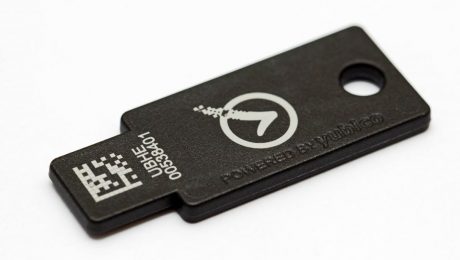
Once again, Google is blazing a new technology path, not necessarily by innovating, but by having the size and influence to make change happen in an industry that seems at times to get stuck in a vicious circle. In this particular case, technology has been navel-gazing on the password issue for years despite having the solution in hand decades ago: multi-factor authentication. In its most simplistic and well known form, you have probably been using two-factor MFA for years without even realizing it: your ATM card and PIN. In MFA terms, this is “something you have” (your ATM card) and “something you know” (your PIN). Without both present, authentication doesn’t happen.
Using its thousands of employees as guinea pigs since early 2013, Google is testing a technology platform it plans on releasing in 2014 based on MFA. The “something you have” in this case is a small USB FOB that is paired with your user login and a simple 4-digit PIN (“things that you know”) that authenticates you on a computer or an NFC-capable mobile device. If this sounds familiar, it may be because this device I wrote about previously does essentially the same thing. Instead of having to remember a bunch of different passwords, whenever you needed to prove who you are on the web or in an app, you could plug in your Yubikey (or tap your Nymi!) and viola, “Identity Verified!”
What this means for you:
The Yubikey Neo isn’t available yet, and Google hasn’t given a firm date as to when it will be available other than “2014”. Also, the utility of the device is highly dependent on a wide variety of services adopting the authentication platform, so even if they made it available as early as next month, you may find it to be somewhat useless until your favorite providers implement the technology, if they do at all. If you want to show your support for the death of the password, you may want to jump on the Nymi bandwagon, as even if the product never gets widely adopted, you can still accessorize with a wearable conversation-piece!

In a move that surely caught Hollywood by surprise, Canadian company Bionym has announced the imminent arrival of a biometric authentication device dubbed “Nymi” that relies not on retinal scans or fingerprints or even handprints, but upon the beating of your heart. As with many things human and organic, the particular rhythm of your cardiac system is unique to you, and the mad scientists at Bionym are leveraging this fact as part of a 3-factor authentication system that will allow you to use the bracelet for a variety of applications, not the least of which will be unlocking your devices, accounts and just about anything that can be communicated to via bluetooth or NFC.
What this means for you:
Just about everyone, including yours truly, grumbles about how inconvenient password authentication really is, despite knowing just how bad it could be without them. Nymi has the potential to leverage biometric security measures in a way that doesn’t rely on easily defeated fingerprint readers or expensive and uncomfortable body part scanners. This type of 3-factor authentication puts a twist on traditional two-factor methods (password + device) and instead substitutes your cardiac signature plus physical contact with your skin for the password to unlock the Nymi, which is also tied to another device like your smartphone for a third verification. Absence of any one of the 3 factors make authentication impossible, and mere possession of the device doesn’t prove ownership as it does for current-gen proximity devices like the Skip.
It almost sounds too good to be true, and the demo video released by the company has a distinct sci-fi feel that will probably provide at least one eyebrow-raising moment for any first-world citizen. But when you stop to think about the various demonstrations, each one already has an existing, real-world corollary that while maybe not in widespread use yet, could easily become commonplace tomorrow, especially if Nymi takes off. I believed enough in the promise to pre-order mine (#1141). Heck, for $79, at minimum it will make for a great conversation piece at parties, and if all it does is keep my cell phone securely and safely unlocked while I’m near it, I’ll consider it money well spent.
-460x260_c.png "Google_Chrome_icon_(2011).png")
It pains me to criticize a browser that I typically praise and recommend, but I can’t play favorites when it comes to security. An article by Elliott Kember pointed out a glaring security controversy within Chrome that has the various tech ideology camps (hackers, security analysts, developers, power-users etc.) bickering over some of the most basic elements of data security. In a nutshell, Chrome (like all browsers) has the ability to save passwords for any website you visit, and when this feature is enabled (it is, by default) it will ask you politely if you’d like to save that password you just entered for this website. Here’s the controversy: if you go into Chrome’s advanced settings and view the list of passwords saved by the browser, you can actually click on each password and view it in clear text. Not the usual black bullets we’re used to seeing – you can actually read the password. Go ahead, see for yourself. I’ll wait.
I was literally gobsmacked when I found this out, as I have been using Chrome ever since it was released to the public. “They obviously haven’t thought this out!” I said to myself, but it seems that the head of Chrome’s security development thinks otherwise (warning: geeks arguing on the internet – the knives are out!); the basis of his argument is that if someone other than you is physically sitting at your computer and can manipulate the mouse and keyboard to the point where they can get to this screen, then any security precautions Chrome could put in place are essentially null. This is actually a position I share regularly with my clients: if someone has physical control of your device, most security measures like passwords will do much less to protect you than you think. HOWEVER…
What this means for you:
Yes, if someone unsavory has possession of your hardware and are appropriately trained/equipped, even a strong password isn’t going to keep them at bay for long. But what about the time your roomate or co-worker asks to borrow your laptop real quick to do [random, innocuous websurfing task]. Sure, no problem, you close out of whatever sensitive websites you might have open and push it over to him. Let’s say this person’s intentions aren’t completely honorable, but he also knows he doesn’t have much time to go browsing around randomly through your bookmarks or history to see if any website sessions are still valid (ie. you’ve recently entered a password, and a cookie provides convenient re-opening of a website). But he does know that Chrome has this particular flaw, and he quickly glances through the saved password list, memorizing a couple critical ones to use for later wreaking of havoc.
Scared now? It’s not clear whether Chrome will ever fix this “issue” when they don’t recognize it as such. I rarely let anyone else use my laptop or desktop, but I’m still erasing all my saved passwords and disabling this feature. As convenient as it may seem, at minimum you should NEVER save passwords for any sensitive accounts like online banking, email, etc, and if you can stand the inconvenience, don’t let your browser save passwords at all, in any browser on any platform.

In a controlled experiment run by technology website ArsTechnica.com, hackers were given a list of over 16000 hashed passwords and asked to try to decipher as many as possible. Not only were they able to crack over 90% of the passwords in about 20 hours, one of them managed to decipher over 60% of the encrypted passwords in less than an hour using a single computer.
To put this into some context, the target list contained passwords of varying lengths and composition, containing both letters, numbers and symbols, and was encrypted using an MD5 Hash. For the uninitiated, “hashing” a password is a one-way encryption method used to store passwords. When you go to log into your password-protected service, the server takes the password you just typed in, “hashes” it, and then compares it to the hashed password it has stored for you, and if they match, you are authenticated. Hashing is commonly used so that if a server is compromised and a list of passwords is downloaded, all the hackers have gained is a list of unencryptable letters and numbers. Of the encryption methods available, “MD5” is very common, because it requires little computational power, something that busy websites want to reserve for other functions.
The hackers in the ArsTechnica project used brute-force dictionary attacks driven by their own hand-built hash source lists, essentially decoding the target list by comparing hashes with lists that contains upwards of a billion combinations of letters, numbers and symbols. The computers used in this exercise were garden-variety workstations capable of processing several million guesses per second using parts easily procured from any computer store. Late last year one of the hackers involved showcased a cluster computer built using the same parts. Designed specifically for cracking passwords, this machine was capable of processing 350 billion hash guesses per second, and if it had been used in the above exercise, would have rendered out the list in a few hours.
What this means for you:
The real intent of ArsTechnica’s exercise was to demonstrate how trivial passwords are in terms of true security, even ones that are traditionally believed to be very strong, e.g. “qeadzcwrsfxv1331”. The hackers involved in the exercise pointed out the controlled nature of the exercise actually limited their ability and efficiency as compared to “real world” scenarios – the fact that they were limited to traditional workstations and were cracking a list about which they had no further information. Typically, crackers will have much more information about the passwords they are attempting to decipher, such as the security rules enforced when the users create them (e.g. 8-14 characters, must contain a letter, number but no symbols, etc.). Even knowing the service or site the passwords were used on will help crackers decipher passwords, as it will often allow them to uncover the encryption method used to hash the passwords.
If you think you are being clever by creating “hard” passwords that are ten characters or longer and interspersed with numbers, there is a statistically high probability that even that combination will be on these brute-force source lists, especially if you use the common substitutions like 3 for “e”, zero for “o” and so on. Computers have become so powerful that cracking even the most complex passwords is really a matter of patience and persistence.
On the flip side, most services we use are secured against brute-force attacks, at least on an account by account basis. No hacker is going to waste his or her time trying to guess your online banking password via the methods described above, as they would get locked out after the 3rd or 4th failed guess. But if they somehow managed to get into the bank’s servers and download a list of hashed passwords (which has been happening to other services quite often), you can bet your password will soon become another statistical probability in some hackers brute-force dictionary list.

If you didn’t get your fill of scares this past Halloween, sit down and read this article about password security from Matt Honan, the Wired Magazine writer who’s digital life was destroyed this past summer in minutes by teenage hackers. If you only read one article this year, you should read this one, but in case you don’t (or can’t or won’t), I’ll try to sum up the most important parts of the article:
- We are sacrificing privacy and security for convenience.
- Passwords (even long, hard to guess ones) are no longer viable.
- The technology industry hasn’t been able to come up with a better solution to this problem.
What this means for you:
Again, if there is one article you should read this year, especially as you gear up to get your online shopping done this upcoming Black Friday, it’s this one! You’ve heard me give you all the precautions and practices you should be following to better secure your online information, but Matt explains in easy-to-understand, non-technical terms why folks like me are growing increasingly concerned – and in some cases frightened. We, as a civilization, have hit a critical point in our history, and if we don’t make some careful choices and some necessary changes to how we use computers, we are heading down a road of security ruin that could impact anyone that uses technology as a critical part of their lives.
Until better solutions to the password problem arrive, there are some things you can do:
- Don’t use the same login and password for multiple sites.
- If it’s available, use 2-factor authentication to secure accounts, especially email.
- Don’t use easy to guess passwords. Use really hard ones for your most important accounts.
- Use a separate, hard-to-guess email account for password resets that is separate from your main email account. Gmail is great for this, as it offers two-factor authentication.
- For password hint questions, eg. “What is your mother’s maiden name?” use incorrect answers that aren’t easily found on the web, and only you would know.
Read the article for even more tips on how to make yourself harder to hack.
Either stop what you are doing and read this article from PC World, or mark it for later and keep reading this story, because this may be the most important thing you do this month.
Easily searchable personal information available on the web plus easy-to-guess passwords can lead to identity theft. Not worried about that? You should be. It’s a problem that won’t be going away anytime soon, and it won’t just affect your personal life – it can impact your business as well. Keep in mind that being targeted by a hacker versus getting infected by malware are two very different levels of danger. A direct hacking attempt is focused and presents a very clear threat to you, your loved ones and your business.
What this means for you:
Google yourself. Try various combinations of your name (including former names if appropriate). Now try your family members. Look for data that you might consider sensitive: age, birthdate, address, names of financial institutions, work or home addresses, and most importantly look for anything that you’ve used as a password. Don’t freak out! Google doesn’t know you that your dog’s name is your favorite password, but a clever hacker might figure it out just by guessing.
If you’ve sufficiently worried yourself, here’s what you need to do to harden your personal security profile:
- Use longer passwords (8 or more characters) that are not easily guessable. That means you need to stop using your Mom’s birthday, your cat’s name, etc. Mix it up with numbers and punctuation. Hackers can crack a 5-digit/letter password in a single hour just by brute force. If you want to be really safe, use a Passphrase.
- Don’t use the same password/passphrase on your important accounts, like Banks, email, data encryption, etc.
- Search your email (especially if it’s cloud-based like Gmail or Hotmail) for any emails that contain passwords, delete those emails immediately. Delete any emails that list account/login names for important accounts. Do this even if the information is no longer valid – hackers can use the info to make better guesses about active account names and passwords.
- Check your privacy settings for any social networking accounts you use (or have used in the past). If you don’t understand how they work, learn how they work or remove your account if you can’t/won’t take the time. This includes Facebook, G Plus, Pinterest, Yelp, etc. Anywhere you’ve typed in personal information about yourself may be a potential leak you didn’t know you needed to plug.
In the end, if you are able to make yourself even incrementally harder to hack than someone else, hackers are more likely to move on to easier targets. Obviously, if you need help hardening your personal or business security profile, don’t hesitate to give us a call!
Image: FreeDigitalPhotos.net
- 1
- 2