


I can count on one hand the number of people that have said to me, “There’s not enough stuff on Facebook!” without using any fingers (and she was new to Facebook). More often, I hear, “I can’t keep up,” or “I have to sort through a lot of fluff to find anything good.” According to an opinion piece published in Business Insider, Facebook appears to be collapsing under the weight of its market dominance that is only exacerbated by the ease of posting anything to their stream from just about any device. So take this fire hose of updates from everyone you know and add video advertisements that will automatically play as they appear (sound muted…for now).
Yep, Facebook is adding commercials to your already overflowing news stream.
What this means for you:
If you weren’t already avoiding Facebook, in-line video advertisements might just push you over the edge. Advertisers seem to be salivating at the prospect, with some analysts predicting 1-day 30-second spots costing millions of dollars, but with the potential of reaching billions of viewers. Seeing as Facebook can segment their users into just about any size demographic target, they may start carving up the ad space into more affordable chunks, giving us the social media equivalent of late-night cable community channel or local TV station commercials. I’m only guessing, but this might raise the banality factor a bit too high for most folks, and Facebook could continue to see an exodus of its highly-prized 18-24 demographic as they move on to more focused and less spammy social media platforms like SnapChat, Instagram and WhatsApp.

Last week, Google made a change to it’s widely used webmail platform Gmail: instead of asking if you want to “show images” in emails, Gmail will automatically display them by default instead of asking permission. This particular behavior is also seen in the other two webmail titans (Yahoo and Microsoft), as well as a common feature in mail clients like Outlook. Why aren’t images loaded by default? Primarily because when you open that email full of graphics and you actually want to see them, the mail client (or webpage) makes a request to the server hosting the images, which is usually the same server that sent the email in the first place.
If that sounds like a sneaky way to confirm that you’ve opened a particular email, that’s because it is. This process reveals certain data about the recipient, including date and time of opening, what browser or mail client you are using to view the email, as well as some rough geographical data about your location, based upon your IP address. So why is Google loading images by default? It’s because now they are caching the images to their own server, and then showing them to you, which effectively acts as a proxy between you and the sender, and blinds many marketers who were relying on the image requests to track you.
What this means for you:
Whether you realized it or not, your email client’s annoying tendency to not show you images in emails was actually in your best interests. Because displaying images required you to actively “opt in” by choosing to view the graphics, if that email was sent by a marketer, you sent them a nice packet of data and a positive affirmation that you saw the email, whether you intended to or not. With Gmail’s image caching, some of that data is no longer being unwittingly sent by its customers, however, notice that I wrote “some.” The more clever marketers out there (including Mailchimp, the service I use for my own email) tag email images individually, so they can still track opens, as Gmail still has to load the image to its servers before showing it to you. In my case, this is merely so I can tell if anyone is reading my newsletters, but even that one point of data is still valuable information to email marketers, and you can bet they will find other ways to track your online activity.
_0-460x260_c.png "Google_Chrome_icon_(2011).png")
Back when Google’s Chrome browser was brand new in the browser market and demonstrating how poor Microsoft’s Internet Explorer security was in comparison, it was easy to recommend it as the faster, more secure option. However, with market share comes concessions to convenience and feature-creep, and it seems that Google may be stretching itself too thin to be the browser on everything and for everyone. Aside from the rather disturbing and glaring security flaw pointed out earlier this year in the desktop versions of Chrome (and steadfastly refuted by Google…until it was fixed), Chrome has typically been viewed as the “most secure” of the big three Windows browsers (the other two being IE and Firefox).
Unfortunately, security firm Identity Finder has burst this bubble by revealing another weakness in Chrome. In the spirit of convenience, Chrome offers to save information used to fill out the countless webforms we all run into on a daily or even hourly basis while surfing. Most of these fields are what would be considered personally identifying information (names, addresses, account numbers, etc.) and Chrome stores them in plain text on your hard drive so as to be able to retrieve them for autopopulating other web forms. The problem with this, of course, is that anyone with access to your hard drive can read that data and use it to nefarious ends. And in case you’re still trying to sort out why this is bad, access isn’t limited to someone working on your computer or stealing your hard drive. Unauthorized access is most often gained now through malware infections.
What this means for you:
Sadly, achieving better security is no longer simply a matter of changing your browser, no matter how much any company (even Google!) would have you believe otherwise. If you want to disable the above mentioned “feature” in Chrome, you can do so by visiting Settings -> Advanced Settings -> Passwords and Forms and unchecking “Enable Autofill to fill out web forms in a single click.” You should never rely on just a browser choice to determine the totality of your security. Good security is a combination of browser choice, settings, malware protection and constant vigilance. Chrome still remains a solid choice as a browser but beware convenience features like Autofill and saving passwords in your browser, as this convenience may come at the price of security.
A new website entitled “HaveIBeenPwned.com” recently launched that indexes millions of accounts that have been exposed in some of the largest data breaches in the past 3 years, including the most recent data theft from Adobe, in which over 153 millions accounts were dumped onto the internet. This website allows anyone to punch in their email address to see if their credentials were a part of the haul the data thieves looted in these attacks. Interestingly enough, I punched in my personal email address and discovered (as expected) my account was one of the 153 million exposed in the Adobe breach. Other breaches covered in this database include Yahoo, Sony, Stratfor and Gawker. If you happen to use any websites from those companies, it may be worth your while to check to see if you might have a password issue.
What this means for you:
If you happen to score one or more hits in the database on this website, and you know you’ve used the same password exposed in the above data breaches on other sites, you should stop using that password immediately and head out to change your other passwords ASAP. Even if you didn’t score a hit in the database, there are data breaches happening constantly, and computers have become strong enough to crack the encryption used to store and ostensibly protect them. Where possible (and reasonable), you should be using unique, strong passwords for all your important web services, especially the ones that have access to your sensitive data and money. Programs like Passpack (what I use) and LastPass are indispensible tools to assist in making strong password use practical. Each has a bit of a learning curve and will take some getting used to, but the time spent will be a worthwhile investment in protecting yourself online.
Image courtesy of Salvatore Vuono / FreeDigitalPhotos.net.

Just in time to ride the publicity wave created by Amazon Prime’s Delivery Drones, infamous MySpace hacker Samy Kamkar has created a flying drone that can hack other drones and take over control of them. Before you grab your bug-out bag and head to that bunker in Montana, it may ease your fears somewhat to understand the drones in question are of the toy variety, versus the death-dealing military variety. The popular Parrot AR Drone is controlled from an iPad or iPhone via unencrypted Wi-Fi, a feature that Mr. Kamkar takes full advantage of in his miniature drone predator, aptly dubbed, “Skyjack“.
What this means for you:
While Skyjack is a long ways away from hacking the various UCAVs that are in extensive use around the world, it’s not hard to imagine how this could escalate the high-tech arms race fueled by the highly-publicized arrival of combat drones in the Afghanistan invasion. The idea behind Skyjack is a drone that can hunt out other Parrot AR Drones autonomously and enslave them. Fly Skyjack into a park where enthusiastic drone pilots are taking their Parrots for a spin, and the more unscrupulous Skyjack pilot can steal away the $300 devices in a blinking of an LED. Now extend that idea to a drone that can fly around neighborhoods, hunting out unsecured Wi-Fi networks or routers, hacking them, logging their locations, and then returning to its owner with map and database of ripe targets. Have I frightened you enough yet to get you to change the password on your home router to something a bit harder to guess?
Image Courtesy of Wikipedia.org
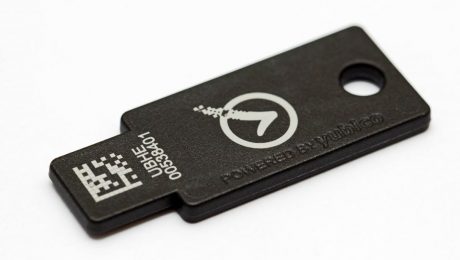
Once again, Google is blazing a new technology path, not necessarily by innovating, but by having the size and influence to make change happen in an industry that seems at times to get stuck in a vicious circle. In this particular case, technology has been navel-gazing on the password issue for years despite having the solution in hand decades ago: multi-factor authentication. In its most simplistic and well known form, you have probably been using two-factor MFA for years without even realizing it: your ATM card and PIN. In MFA terms, this is “something you have” (your ATM card) and “something you know” (your PIN). Without both present, authentication doesn’t happen.
Using its thousands of employees as guinea pigs since early 2013, Google is testing a technology platform it plans on releasing in 2014 based on MFA. The “something you have” in this case is a small USB FOB that is paired with your user login and a simple 4-digit PIN (“things that you know”) that authenticates you on a computer or an NFC-capable mobile device. If this sounds familiar, it may be because this device I wrote about previously does essentially the same thing. Instead of having to remember a bunch of different passwords, whenever you needed to prove who you are on the web or in an app, you could plug in your Yubikey (or tap your Nymi!) and viola, “Identity Verified!”
What this means for you:
The Yubikey Neo isn’t available yet, and Google hasn’t given a firm date as to when it will be available other than “2014”. Also, the utility of the device is highly dependent on a wide variety of services adopting the authentication platform, so even if they made it available as early as next month, you may find it to be somewhat useless until your favorite providers implement the technology, if they do at all. If you want to show your support for the death of the password, you may want to jump on the Nymi bandwagon, as even if the product never gets widely adopted, you can still accessorize with a wearable conversation-piece!

In the US, Thanksgiving traditionally marks the start of the holiday season, and most of us will open our hearts and minds (and wallets) just a bit more than we do during the rest of the year, and we let down our guard to enjoy the holiday spirit. Sadly, criminals and other malicious agents are also in the holiday mood, and count on the distractions of the season to really suck the joy out of the holidays. Here are some things you can do to make sure your holidays aren’t marred by the cyber Grinches:
- Stop opening email attachments
This is how the dreaded Cryptolocker virus gets onto your computer. If you receive an email from someone with an attachment that you weren’t expecting, pick up the phone and call that person to confirm that the attachment is legitimate. Hey, it’s holidays. Shouldn’t you be reaching out and touching someone anyways? - Stop clicking links in emails
Just because you received an email from someone you know that has a link to the world’s funniest/scariest/cutest video does not mean you should click that link. At minimum, hover over the link to read where it’s really going to take you. Or pick up the phone and call that person to verify they sent the email in the first place, especially if the email seems to be out of character for the sender. Sensing a trend here? Wouldn’t you rather be on the phone catching up with an old friend rather than explaining to a bunch of angry relatives why you sent them a virus via email? - Beware of fake Holiday Greeting cards, donation solicitations and other holiday-related spam
Hackers will be taking advantage of the increased volume of these types of emails. Observe rules #1 and #2, and watch out for poor grammar and out-of-character emails. Just received an X-mas ecard from someone you haven’t talked to recently? You guessed it…pick up the phone! - Be careful with your personal data
Let’s say you knuckled under the pressure and clicked a link. The website you landed on is asking you for some personal information that seems relatively harmless: Birthdate, ZIP Code, last four of your Social Security number. Unless you are at the website with which you already do business (and have verified its that company’s actual website and not a fake one!), stop what you are doing and back away from the computer. Even these bits of data can be used as a digital wedge to get at other data from your personal life, which can lead to theft of both your money and identity. - Put a password or pin on your phone
See last week’s article on why this is important, and how to do it. Don’t ask why, just do it. Trust me. - Be less conspicuous about using your smartphone
Thieves are targeting smartphone users, especially iPhone users, because the devices are in high demand on the blackmarket, especially overseas where the phones can be reactivated without fear of being tracked. A protective case can help disguise your phone, but if you really want to blend in better, choose one that isn’t blinged out and brightly colored. That case that really helps you stand out in a crowd also paints a big target on you for thieves. Keep it in a deep pocket or a bag/purse that zips or latches shut so it will be less likely to accidentally fall out and picked up by someone looks for a free smartphone. - Keep an eye on your laptop and/or tablet
A lot of us will be traveling during this time of year, and it’s becoming increasingly common to drag along our work laptop so we don’t get too far behind while visiting with family. You’d be surprised at the number of laptops lost/stolen in airports and rental car terminals, primarily because the owners are distracted and overburdened. Having to call your boss to tell them you lost your work laptop and all the data on it will make for a very stressful holiday. It’ll be even worse if you have to call clients to tell them you have lost their sensitive data or may have exposed them to a security risk. - Where possible, don’t let online vendors store your credit card information
Up until very recently, most online stores assumed you wanted to keep your credit card “on file” with them for convenience on future purchases. While this is still the case, many now offer the option to remove that information, or to not store it in the first place. Given how many websites are being hacked these days, you may be better off not keeping that number on file, especially if it’s with a store you don’t frequent. Having to enter your credit card information once or twice is a trivial inconvenience as compared to having to replace all your credit cards because a website you bought something from years ago got hacked. - Beware deals on technology “too low to be believed”
With technology, you get what you pay for 99% of the time, which is to say that if you got it cheap, it’s likely that it is cheap. That knock-off iPhone charger might have been a steal, but if it burns up your battery due to an electrical short, your $5 charger just cost you $500. - Give yourself a gift this year: Back up your data
All hard drives fail eventually. Phones break, get lost or stolen. Viruses happen. If your data is important enough to save to a disk, it’s important enough to back up. There are online subscriptions that can take care of your most precious digital assets for pennies a day and are so simple to use that anyone who knows how to click a link can set up an account. You might not be able to keep the cyber Grinches at bay forever, but a good backup can take most of the sting out of worst virus infections or hardware failures.
Image courtesy of Stuart Miles / FreeDigitalPhotos.net.

As if all the NSA surveillance nonsense wasn’t enough to put everyone on edge about covert snooping, a UK blogger has published information that appears to demonstrate that his LG Smart TV was transmitting data to internet servers about his and his family’s viewing habits, as well as information about USB devices and files attached to the television. On top of this blatant invasion of privacy, there appears to be no way to opt out of this information gathering and sharing, and the information was being sent unencrypted over the internet. When questioned about this particular behavior, an LG representative unapologetically pointed to the Terms and Conditions that the blogger tacitly agreed to upon purchase of the TV, and suggested that he take up his beef with the retailer who sold him the TV in the first place, essentially insinuating it was their fault for not warning the buyer that they were purchasing a 42″ privacy invasion.
What this means for you:
If you have an internet-enabled television, it’s very possible that device is phoning home with data about your viewing habits, and it’s also likely the only (easy) way to disable this is to disconnect the TV from the internet, a feature that was probably instrumental in this particular model being purchased in the first place. Granted, there have been thousands and thousands of families who have happily volunteered this information for decades (think Nielsen ratings), but they knowingly opted in to this reporting. It’s unclear whether TV manufacturers (and the entertainment industry in general) will come clean about this practice any time before Black Friday sells thousands (millions?) more of internet-enabled TVs, and even if they do, you can bet the majority of folks will be outraged for the regulation 15 minutes, and then will probably “return to their regularly scheduled program.” If you have concerns about your shiny big-screen selling you out, pick up the phone or write an email to the manufacturer. Failing a response from them, it may be time to raise a stink at your local big box that sold you the device, because nothing kills sales like angry customers dragging big screen TVs through the return lines.
Images Courtesy of Ohmega1982 (TV) and Salvatore Vuono (eyeball) / FreeDigitalPhotos.net

The winter holidays are upon us, and with them comes the shopping, traveling and general merry-making. Law enforcement is also warning about the increasing rate of smartphone thefts as criminals take advantage of the increased distraction, armfuls of packages and winter clothing to abscond with devices they know most people carry and use these days. Though you can do a lot to lower your profile as a potential victim, its an virtual guarantee that a certain percentage of you will have your phone stolen or lost, and aside from the loss of the device itself, your data could also be exploited to your further detriment if your device isn’t properly safeguarded against possible theft. CNET has a comprehensive article detailing how you can secure your data and increase your chances of recovering your iOS, Android or Windows smartphone in case it is stolen, but if you are in a hurry (and who isn’t, these days?), I’ll provide a summary of the basics below.
What this means for you:
For all phones:
- Use a pin, password, or fingerprint to lock your phone.
- Encrypt your phone data. iPhones and Windows Phones do this by default, but it must be enabled manually on Android devices.
- Back up your critical data, whether it’s contacts, emails or photos.
For iPhone Users:
- Disable access to any features made available through the lockscreen, such as dialing and texting via Siri.
- Set up an iCloud account and enable “Find my iPhone” so that your device can be tracked in case of loss or theft.
For Android Users:
- Disable access to lock screen features.
- Setup Android Device Manager and make sure tracking and control of your device is enabled.
- If you use a microSD card, be aware that it cannot be wiped remotely like the phone’s internal memory (but it can be encrypted).
For Windows Phone Users:
- Sit back and relax, as tracking is enabled by default and the lock screen doesn’t allow access to anything.
The article is really worth reading. If you truly are pressed for time, skip to the part that is pertinent to your specific phone platform. The author provides much more detail on how each tracking system works, as well as what the systems can and can’t do. It may mean the difference between having a happy holiday or a blue Christmas if (when) you get separated from your smartphone.
Image courtesy of Stuart Miles / FreeDigitalPhotos.net

It sounds like the title of a wonderfully bad sci-fi B-movie, but it’s actually happened: the Internation Space Station is infected with a computer virus. Not only is it infected, it’s infected with a famous virus, Stuxnet, which was used to cripple (allegedly) Iran’s nuclear weapons program. Originally designed specifically for infecting Iranian nuclear power plant systems, Stuxnet has since “gone rogue” and is now doing its dirty work around the globe. The virus was designed to be spread not only via network connections, but through flash drives and disk drives as well, primarily because many nuclear power plant control systems are too old to be connected to the internet, which is a scary thought on its own. In the case of the ISS, Stuxnet stowed away on a USB thumb drive brought on board by an astronaut.
What this means for you:
As the story above illustrates, humans continue to be the weakest link in the chain of security. You can spend tons of money on securing your technology, but it can all be blown away by a $10 thumb drive and 30 seconds of careless behavior. A big part of security is training your people not only on what NOT to do, but also on how to be vigilant and careful. As a society, we are starting to understand just how pervasive malware has become, but there are still a surprising number of people who continue to be caught off guard and impacted negatively. Given how this paradoxical, and very human behavior isn’t limited to just technology risks (think about drugs, alcohol, tobacco, base jumping, junk food, etc.) it’s no wonder malware has continued to thrive despite its destructive nature.